Sharing with Linux Mint 18.2 and Windows

I have an “Equal Opportunity” network. A few Windows 10 systems and a lot of Linux Mint systems. And I obviously want to share files among my systems.

Install Samba from 2017-10-06 09-25-01.png

Over the years and versions, Linux Mint has gotten more friendly when sharing files with Windows systems. Samba has always been a thing, but in recent versions, Linux Mint has made it easier to get it going.

Back when I was using Ubuntu – which Linux Mint is based on – in 2008, it was a pain to get Samba going. But things are better now. Now with Linux Mint 18.2 the dialog above is what you get if you navigate to Home and then try to share your personal folder, presumably for read-only, to the rest of the network. That’s a start. Look even an install button.

Continue reading “Sharing with Linux Mint 18.2 and Windows”

Move to Linux

Screenshot from 2016-08-13 07-12-48.png
Linux Mint 18

As you can tell from previous posts, I’m having trouble with the Windows 10 Anniversary Update on one of my machines. It’s an older machine and I suspect that Windows has broken a driver for the old motherboard. The latest version that worked properly was Version 1511 / 10586.545 and each time I restored to the last Restore Point, it went back to that. So apparently, the Anniversary Update 1607 / 14393.51 is the problem.

After going back to a Restore Point on two successive days, I turned off the Windows Update service and the machine was ok for a day, but I decided that this was too risky a state to leave the system. I have decided to move the system to Linux Mint 18, and this post is being typed into that system. It took about 2 hours to do the update, including installing a new system HD, and another couple of hours to set up Thunderbird email.

I have used Linux Mint for many years, and the latest is version 18. I prefer the Cinnamon version, but you may prefer another of the several window managers. For my choice, Cinnamon looks the most like Windows.

This machine is used for email, online shopping and document creation. It has two 1080×1200 monitors driven by an older GTX 270 card. Not the best for gaming, but just fine for it’s uses. Continue reading “Move to Linux”

Windows 10 Anniversary Update a Mess

IMGP0572.JPG
Boot Failure after Anniversary Update

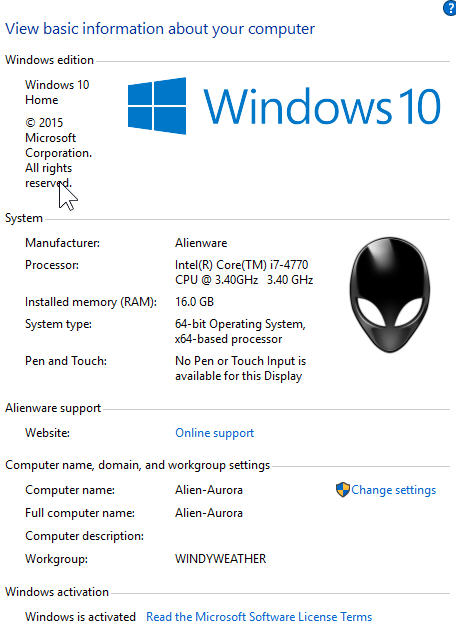
I had my Alienware Area 51 since about 2007 – since right before DELL bought Alienware – and about a year ago I upgraded to Windows 10. No problem. Here are the specs.

But the Anniversary Update fails miserably on this machine. It keeps waking up dead, if you see what I mean. A couple of days ago it was running, right after the update but without the 2 additional SATA hard drives. The drives were obviously still in the system, but Windows 10 did not see them. And Disk Manager did not see them either. So I did a RESTART with the start menu and got into a world of hurt. The system never finished restarting. After 10 minutes it was still doing an animation on the screen saying Restarting. So I used the power button, it failed to boot, and then finally I got it back by going back to the previous restore point using essentially the same process you see below, but it looked different that time. No application windows just blue screen dialogs.

Now it’s happened again, but differently. Continue reading “Windows 10 Anniversary Update a Mess”

Windows 10 – Upgrading another system

Screen_00006

BTW, I have no idea why this system shows an Alienware Logo in the System Control Panel. I have completely swapped out the guts of this system and reinstalled a new copy of Windows 7.

I just upgraded this system to Windows 10 using the DVD burned last time and did the following steps:

  • Backup everything on the system drive from C:\Users\Yournamehere\My Documents etc., if not to another system, at least to one of the data drives.
  • Uninstall any crufty old programs that I’m not going to need in the new world.
  • Reboot
  • Make a record of all the things you have installed by taking screenshots of the “Programs and Features” control panel list.
  • Download the latest Nvidia drivers for the card for both Win 7 x64 and Win 10 x64.
  • Update the [Nvidia 560ti in this case] driver to the latest and greatest for Win 7 x64.
  • Reboot
  • Run setup from the Windows 10 DVD.

Continue reading “Windows 10 – Upgrading another system”