Linux Mint – Windows File Sharing Just Works

Samba Built In
Samba Built In

Hurray! Windows File Sharing just works in Linux Mint 17!

It’s been a long time since I tried it.  Back in 2010 when I was using Ubuntu, I wrote a post about how to set up Samba, and WinBind to get network sharing going and was quite disappointed that it wasn’t working. Well, that process was so cumbersome that I haven’t used it much over the years and in spite of the fact that about half of my computers are Linux, I haven’t bothered to set it up, or check to see how things have progressed. But I was sharing files recently and lo and behold, it works just fine!

As you can see from this picture, I am looking into a share from a Linux Mint 17 system into a Windows 10 system and can see and read those files. The Windows 10 system drives are shared read/only, as is the best practice. More about that later. But here is what you can expect if you have a mixed network, and how you can use Windows File sharing between Windows 10 and Linux Mint 17.

Continue reading “Linux Mint – Windows File Sharing Just Works”

Qt Framework and Creator – Installing on Linux Mint, Windows 7

QtLogo_300x300_trans

I use the Qt Framework to develop portable software for Windows and Linux. You can find my software on sourceforge. This post is going to record the installation instructions for Linux and Windows.

Linux Mint 17

I use Linux Mint 17 at this point and the installation differs slightly from the installation that I found on the net. See below.

Windows 7

Primary development of my software is done on Windows 7 and then the sources are moved to Linux to be compiled there.

Check the rest of this post for installation instructions:

Continue reading “Qt Framework and Creator – Installing on Linux Mint, Windows 7”

Linux Mint 17 – Auto Mount Solved

SOLVED – see below

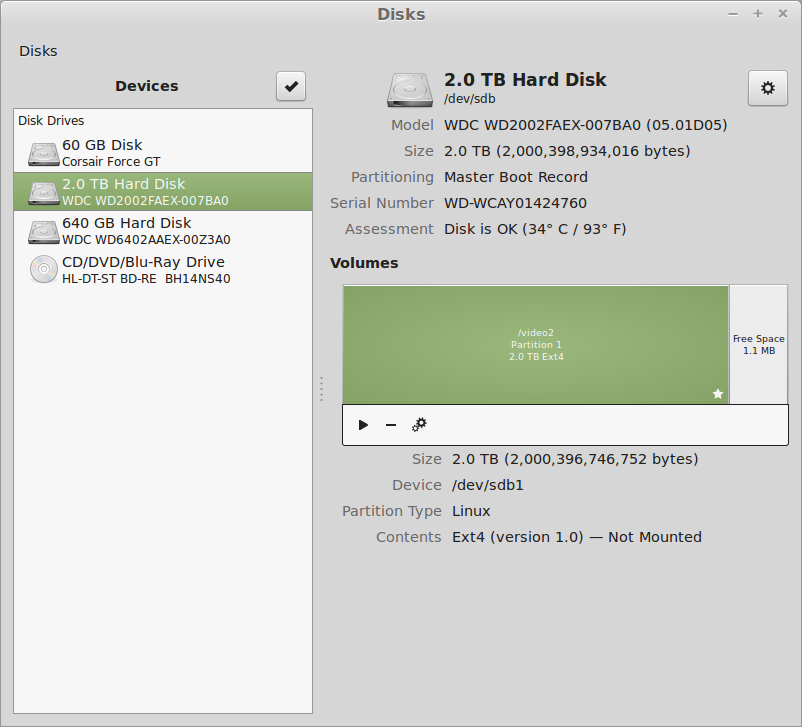
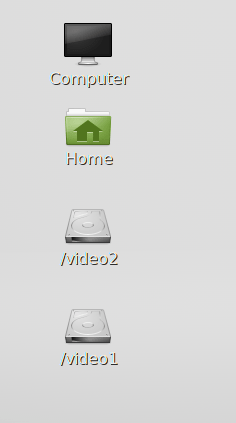
The Disks
The Disks

I have a couple of hard drives. But I can’t get them to AutoMount. Used the post here to try to get it to work, but this does not work. The boot stops with a message to “Type S to skip mounting or M to Manually whatever”.

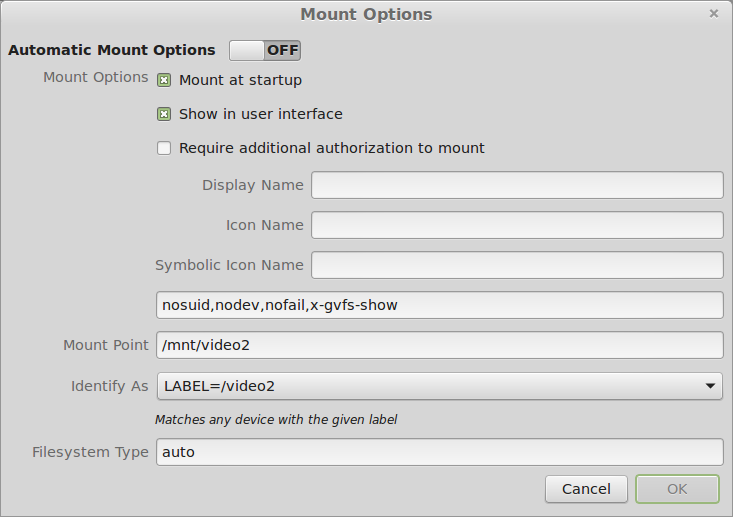
Mount Options
Mount Options

I set the options to LABEL= to match the old mount point, I hoped.

I can mount the drives manually using the little Arrow in the Disks program next to the partition.

PROBLEM SOLVED

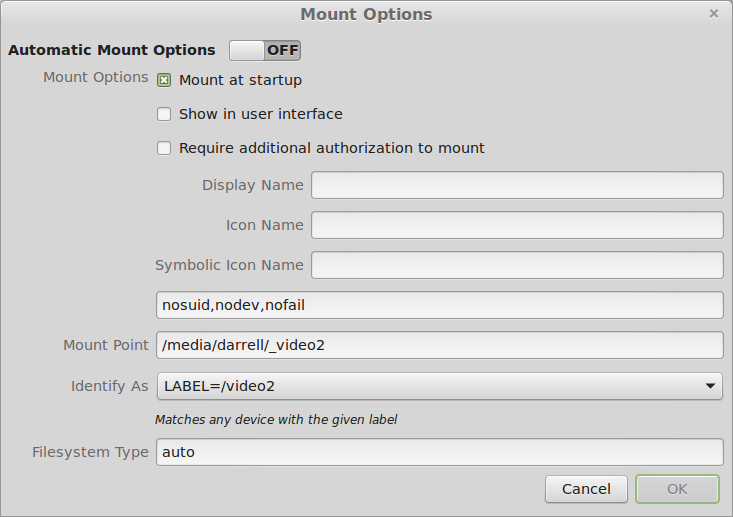
According to this post under Ubuntu: You must uncheck the “Show In User Interface” option:

Correct Options
Correct Options

The drive[s] then show up as /mnt/YOURLABELHERE and rebooting remounts the drives properly.

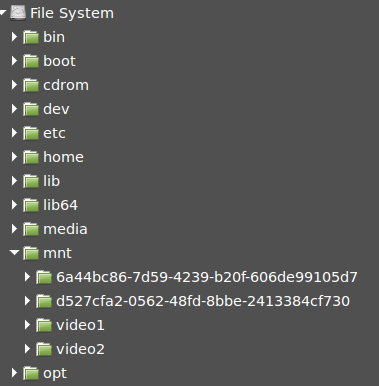
Mounted drives
Mounted drives

But these are not the original mount points that were present when the disks were first added to the system. So I changed them and they still mount properly.

Corrected Mount Points
Back to the Original Places

And they appear in the user interface, as you can see. Voila! Why is this so complicated?

ww

BTW, this was published for 2014 so that it does not appear on my first page of the blog. There is no other way I know to get things off the first page.

Linux DVD writing screenshots

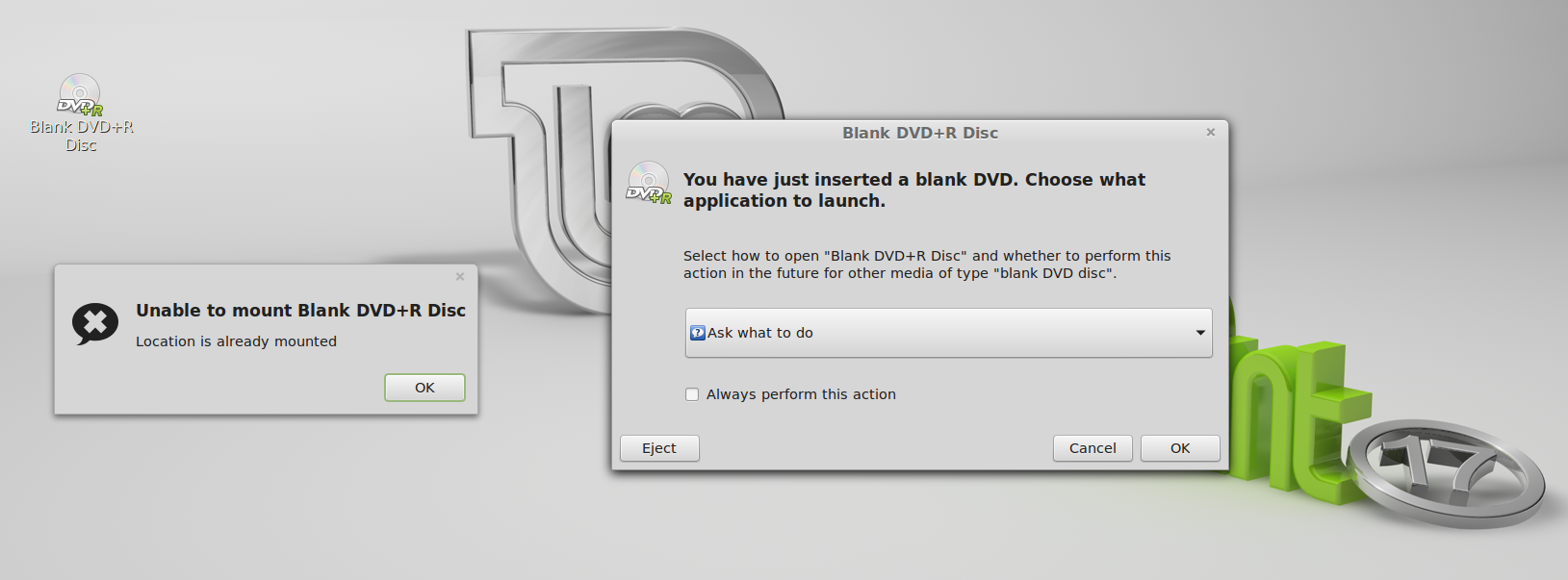
When DVD+R is Inserted
R-Click choices on ISO

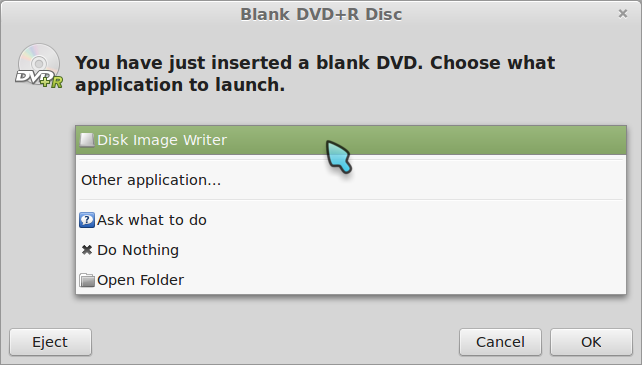
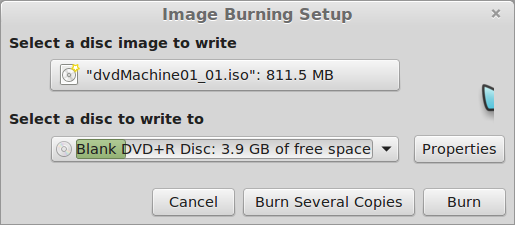
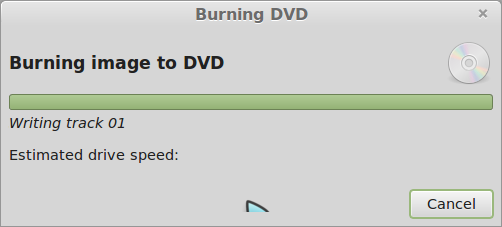
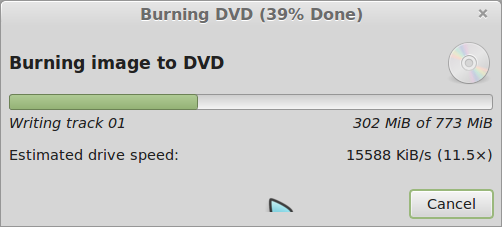
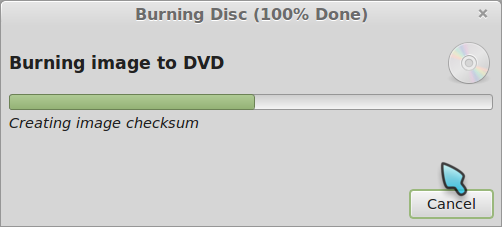
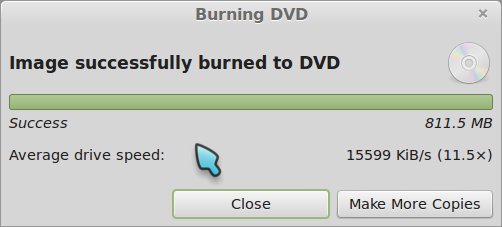
When I choose Disk Image Writer, on LM17, I get a window for which I have no understandable choices. So the question is how am I supposed to use this interface to write an ISO the DVD+R that I have just inserted.

Oh. I see:

Disk Image Writer is a backup program. Brasero is the ISO media writer program, among other things.

Thanks a heap,
-ww

@N200 ~ $ inxi -S
System:    Host: N200 Kernel: 3.13.0-24-generic x86_64 (64 bit) Desktop: Gnome Distro: Linux Mint 17 Qiana

BTW: Publishing this exactly one year ago is a hack to keep bug posts off the front page, for which there is no feature in WordPress.

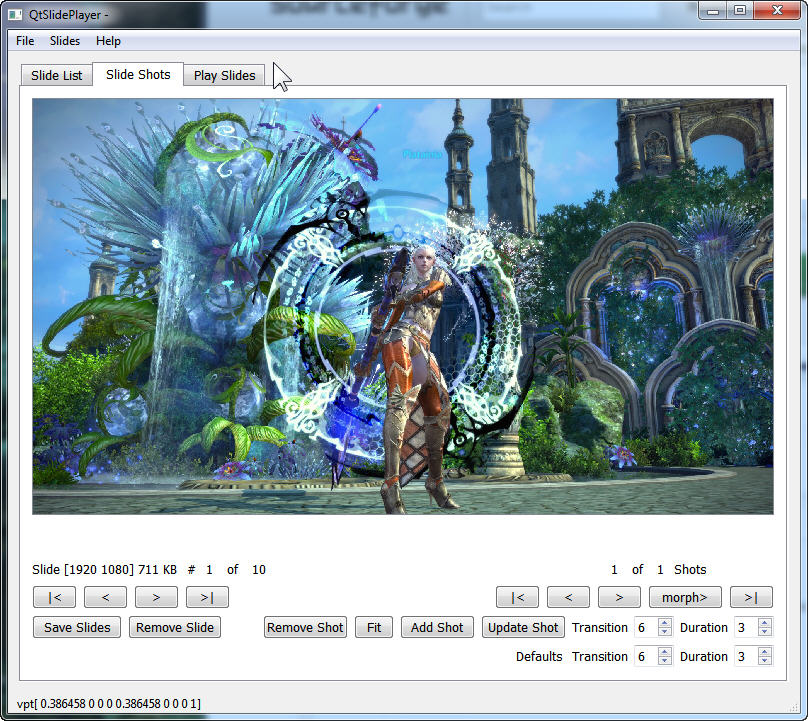
QtSlidePlayer – Display Slides without Movies

QtSlidePlayer Shot Editor

I wanted to display images each with one or more pan / zoom shots. Both on Windows and Linux. I have a Zbox running Linux Mint that I use as a photo frame. As I looked around for programs, all of them created movies. I did a test with one of these programs and 5 slides took 2 minutes to render the 100MB video. This means that a slide show of 300 slides would take 5 hours to render a movie of 8GB. The images for this slide show are only about 200MB.

QtSlidePlayer allows building slide shows in a portable way and the program runs on either Windows or Linux. You can find the program at SourceForge.

Continue reading “QtSlidePlayer – Display Slides without Movies”

Linux Mint – Migrate to SSD

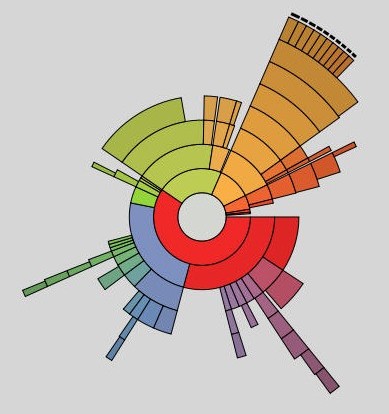
Baobab
Baobab

Every post should start with an interesting picture.

Ok. Now for the article.

I’m using a Linux Mint system hooked to my TV to watch Netcasts from the Twit.tv network and other things. It’s built using an Thermaltake Armor 30 case and a Core i5 Haswell processor, 8GB RAM, GFX 640 graphics, and a 250GB HD.

But the system is slow. So I’ve decided that the best approach would be to get a cheap SSD for it. I found a Refurbished 60GB SSD on Newegg for about $40. That should do the trick. Given there aren’t that many apps installed on the Linux system, it uses far less than 60GB, so the small size is no problem.

Migration to SSD

I don’t want to completely rebuild the system. I’d rather migrate it to the SSD. A forum post led me to using gparted to migrate the partitions from the 250GB hard drive to the SSD. Also, it seems best to test this scheme using a virtual machine before I actually migrate the system. One of the VMs I keep current is a Linux Mint 15 system in a 60GB VM disk on my Windows 7 system. I use Virtual Box.

After I did the experiments with the VM, I successfully migrated a 250GB HD – 9GB used- to a 60GB SSD with no problems using this scheme. Continue reading “Linux Mint – Migrate to SSD”

ZBox Audio with Linux Mint – Tutorial

ZBox ID80

As I mentioned in my previous post, I just got a ZBox ID80, installed Linux Mint 12 and had some trouble with the sound. Turns out the problems were user error, but setting up sound was a little confusing.

So here’s what you might like to know to make sure your audio is working, at least for this hardware and Linux Mint 12. Continue reading “ZBox Audio with Linux Mint – Tutorial”