Recently, Windows 11 has started to Beep at various times. Nobody online seems to really have a handle on what is going on, or how to fix it. But I had a thought that nobody I saw discuss this topic has mentioned. The various sources indicate that it seems to be coming from USB Device Connects / Disconnects and talks about looking at the event managers to see this. I looked and I could not see any events.
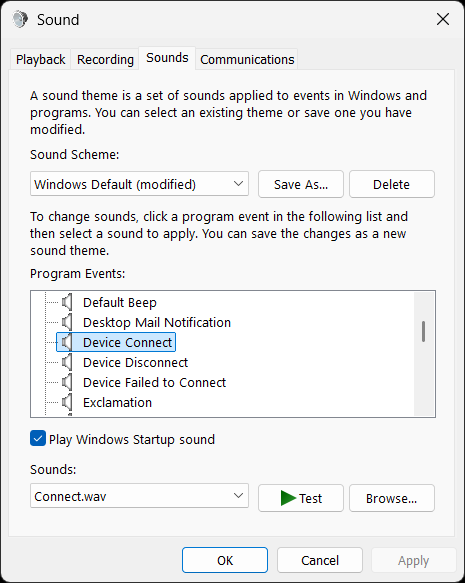
There is a control panel to set what sounds play on certain events.
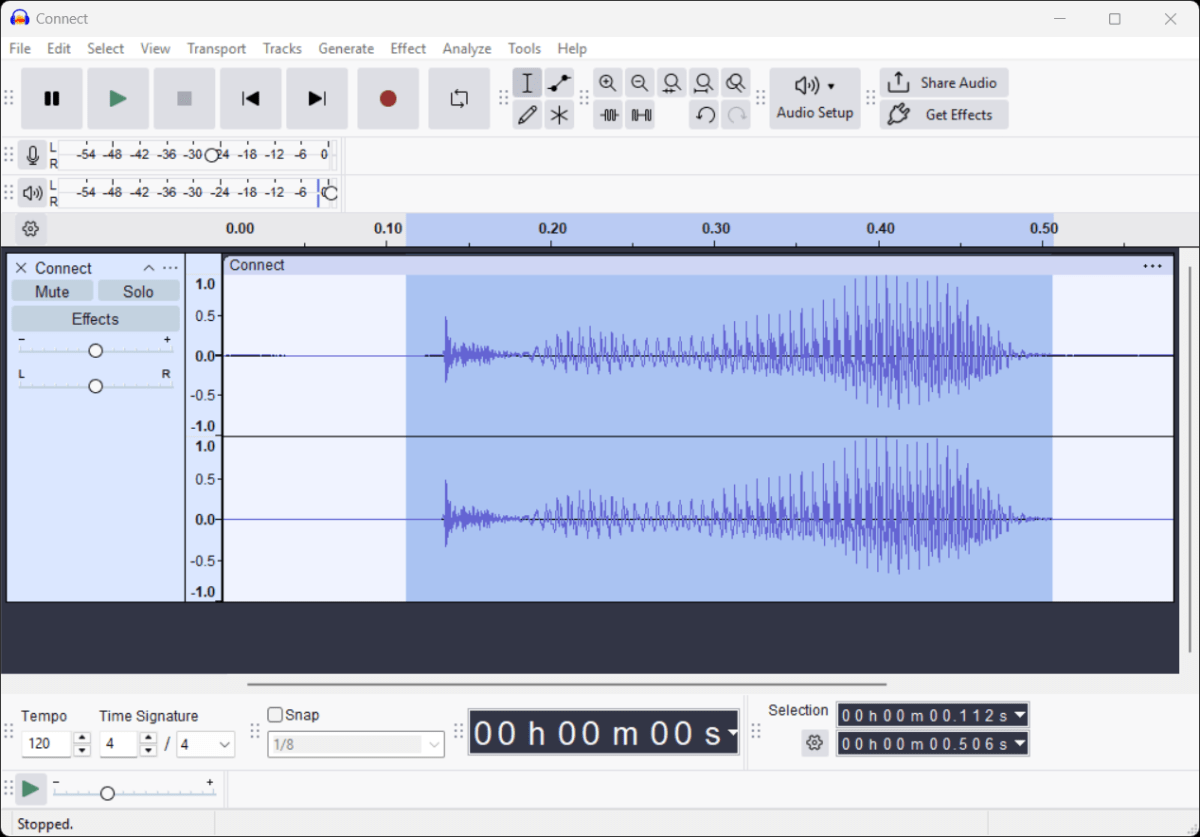
So I had the bright idea of changing the sounds for Connect and Disconnect to see which one was occurring. The sounds I heard did not sound exactly like these, but here’s what I did.
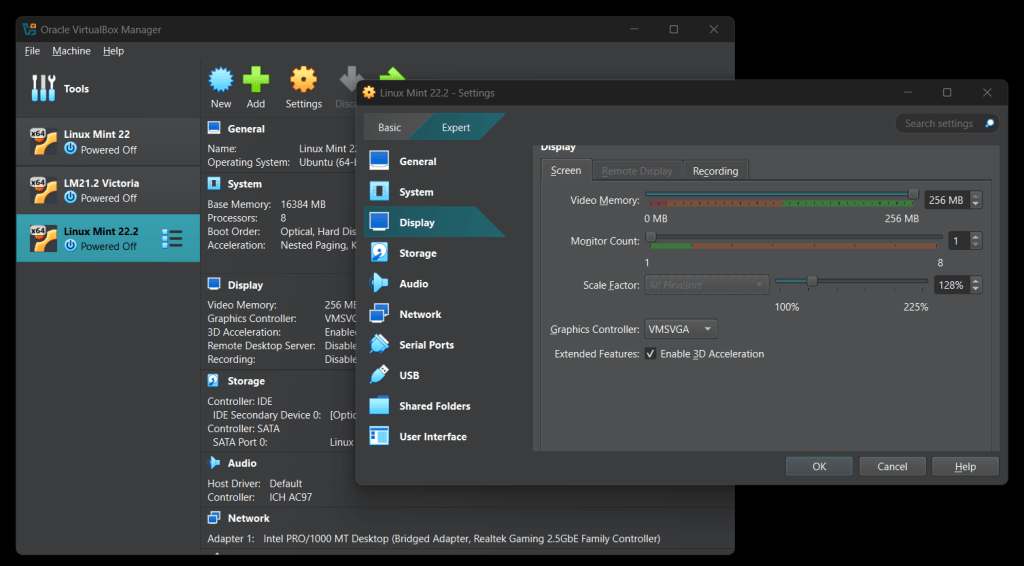
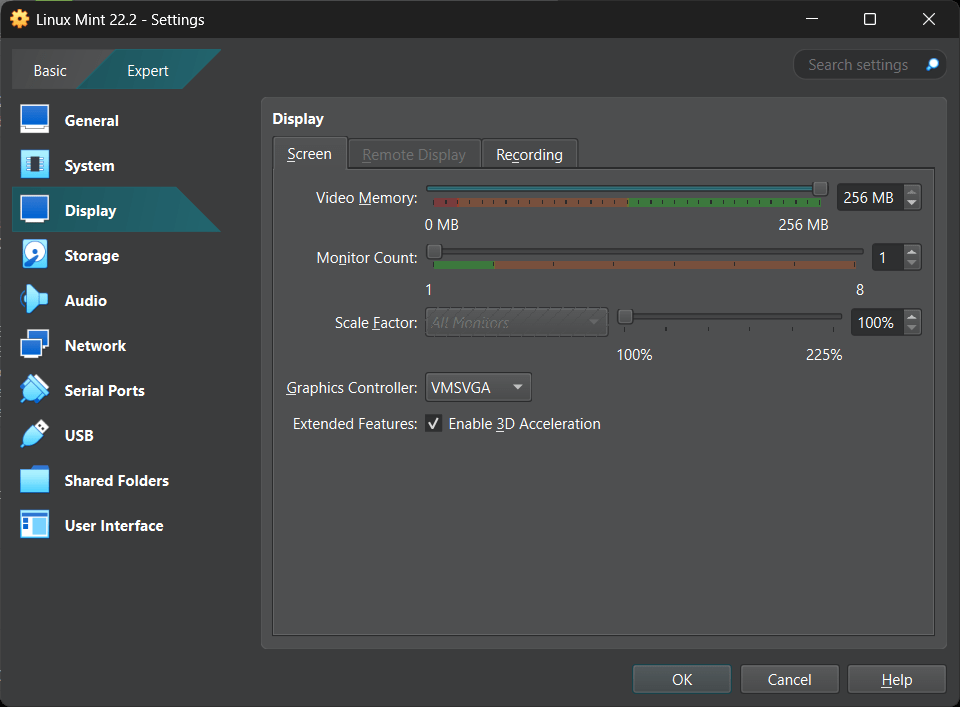
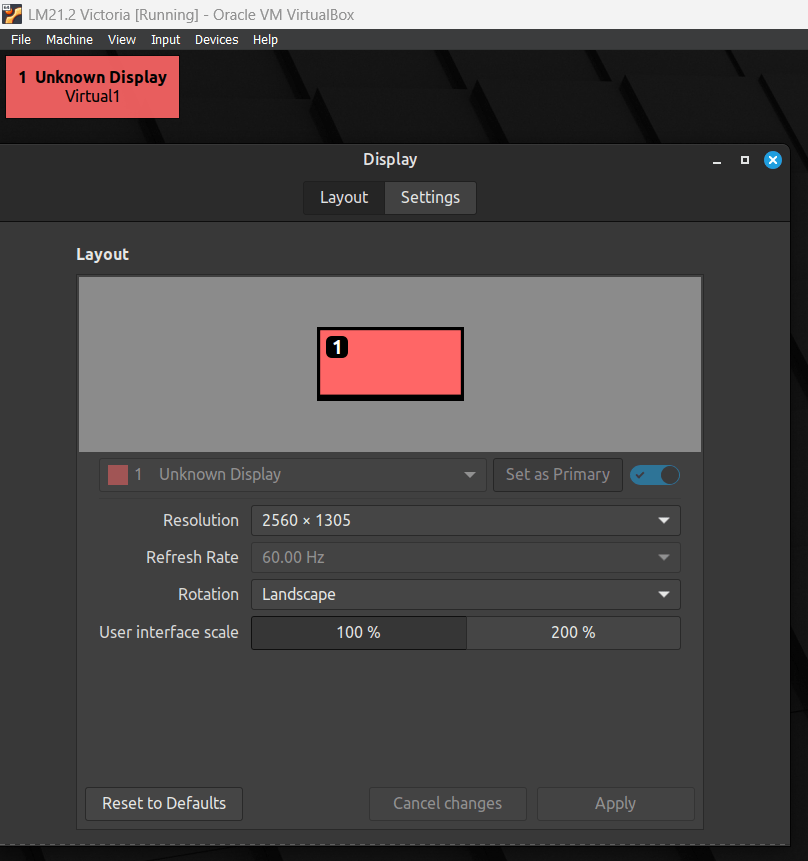
Back in December 2024 I was struggling with some of my Linux Virtual Machines having Blurry Text. No matter what I did, I couldn’t figure out why the text [and other things] were blurry. I thought it was an error with the graphics driver in Virtual Box, or the Guest Additions. Well it turns out it was a bad setting. I can’t figure out why I changed this setting and didn’t notice it. But when I put it back to 100, all was well. No more blurry.
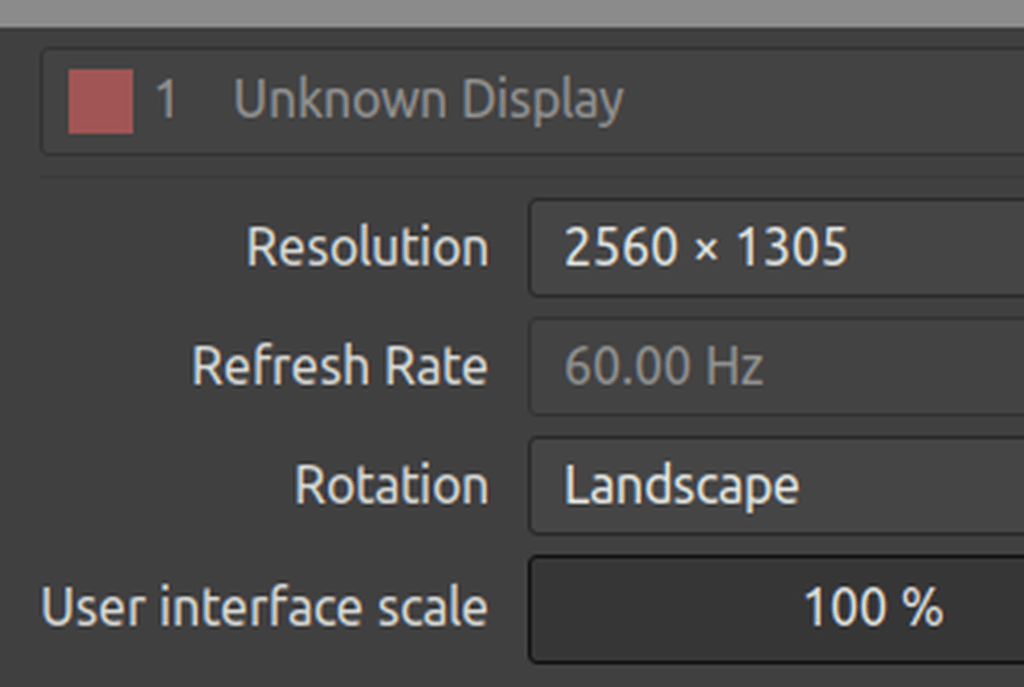
The picture on the left shows the display settings for the Virtual Machine with a “Scale Factor” other than 100%. Don’t do that. It will make the text blurry.
The picture on the right shows the correct display settings for sharp clear displays.
Not sure how it got changed, but it’s not the guest additions or the video driver. Just a bad scale factor setting.
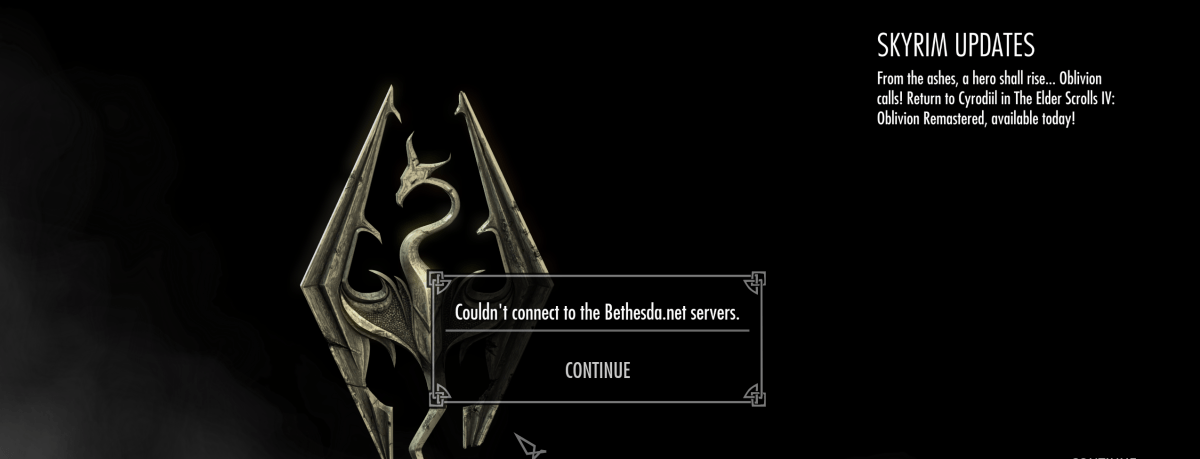
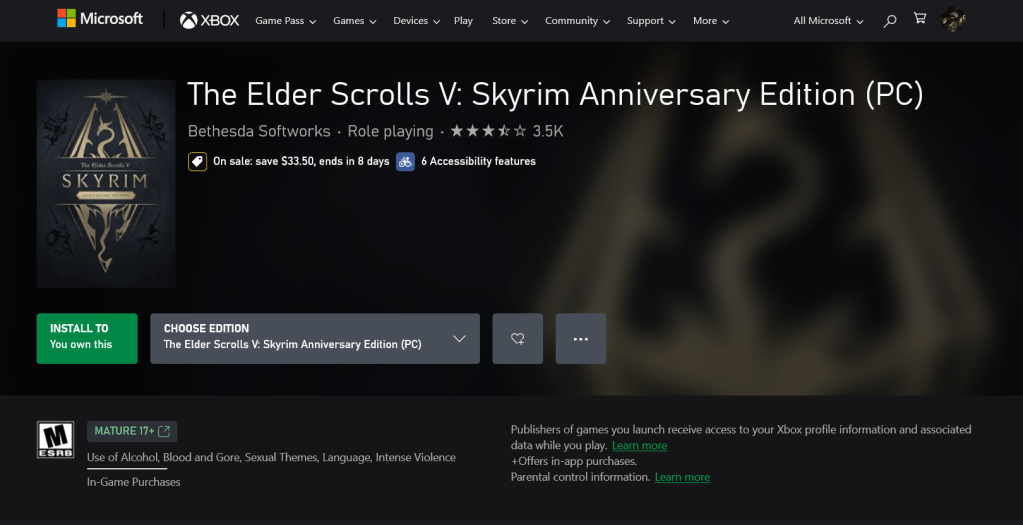
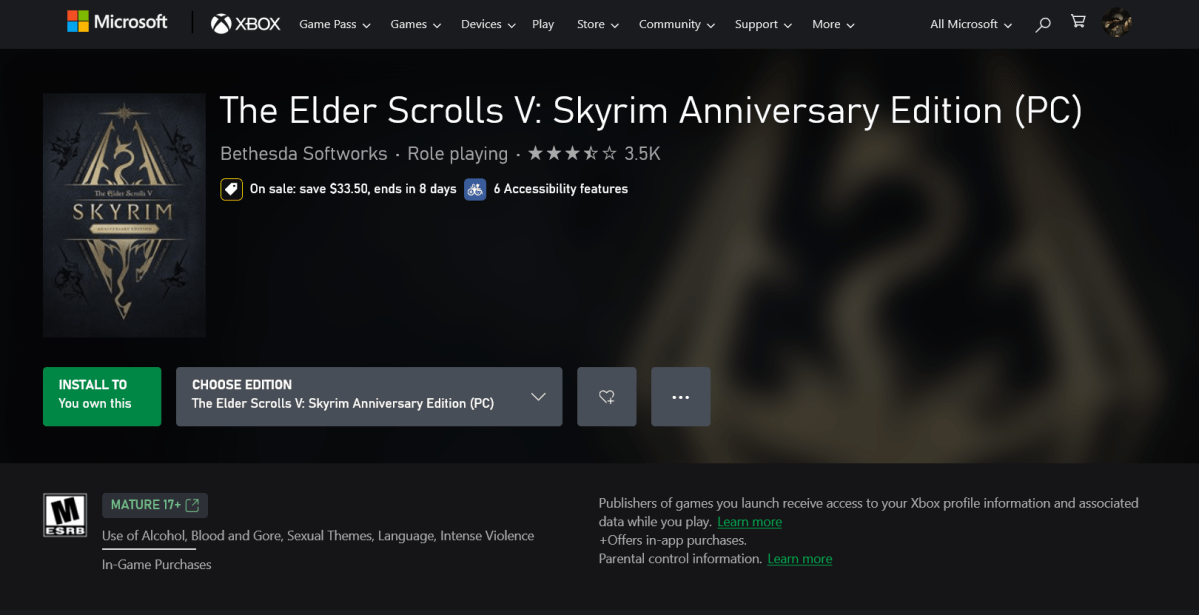
I used the web to purchase a copy of Skyrim Anniversary Edition and to do that I signed into one of my Microsoft accounts. As you can see above, I now own Skyrim. Then I opened the XBox app on my PC and tried to install the app.
I got this:
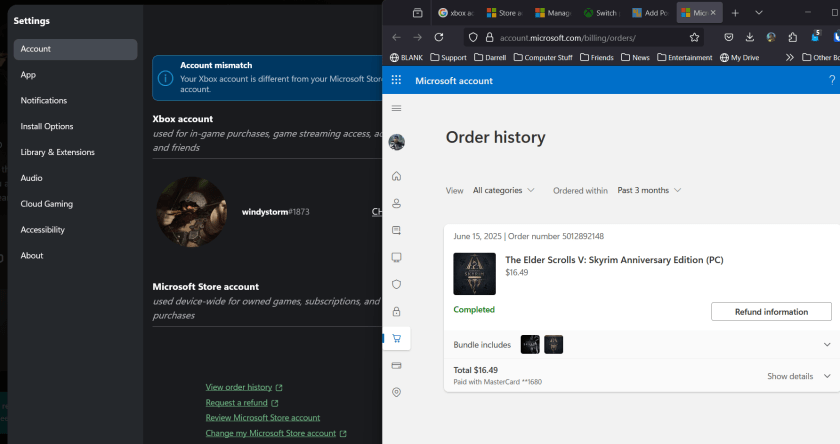
So as you can see, the account where I am logged into in the XBOX app, on the left, matches the account where I ordered Skyrim, as you can see on the right. I clicked the VIEW ORDER HISTORY button to display the web page on the right.
So now I need to set the store account to match this account that I’m logged into so that I can play the game, Right?
Oh.. there it is…
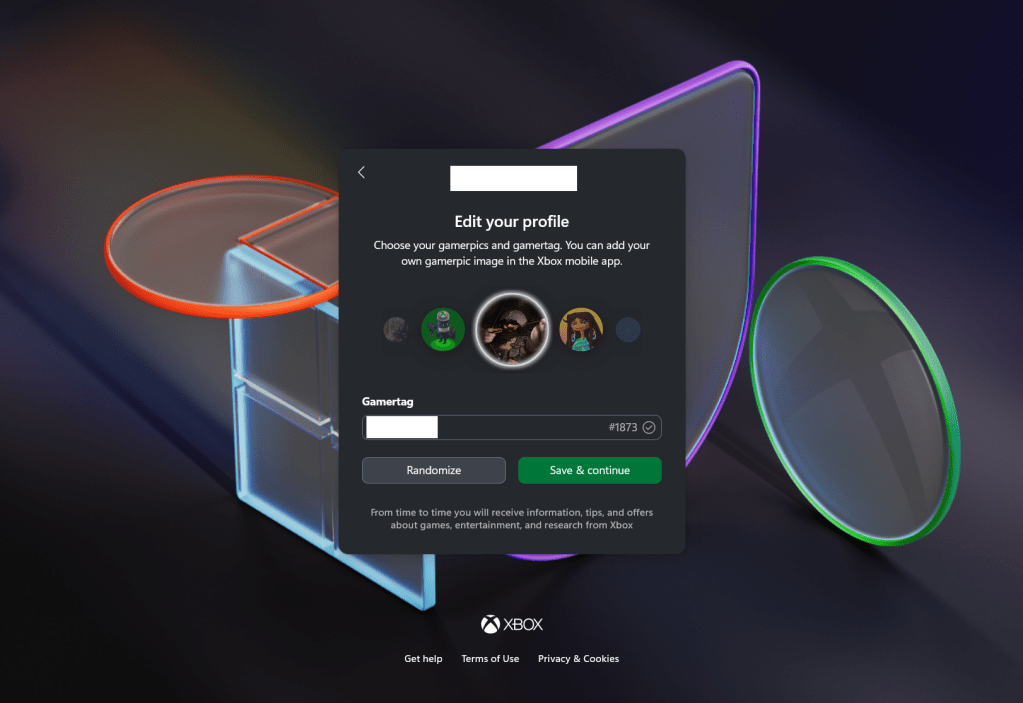
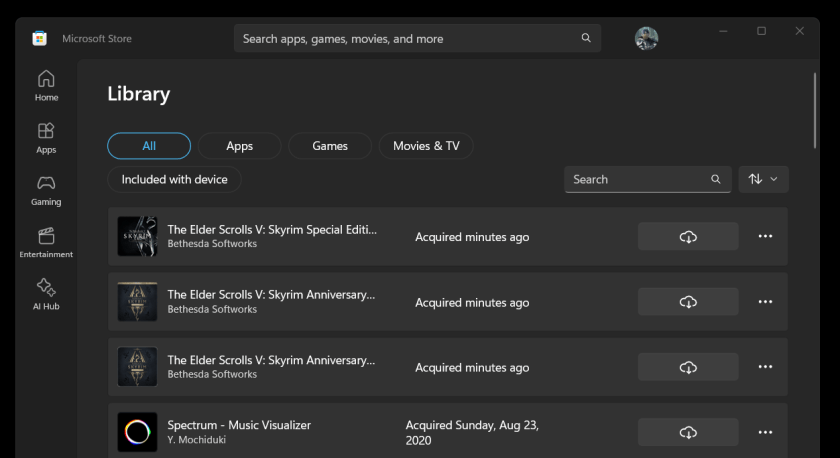
So the fix oddly enough, was to open the Store, sign out, and sign back in with the account. While the XBOX app seemed to offer an option to do that, it just sent me to a website that never said to sign out of the store and back into the store with the other account. So there are two apps, the store and the xbox app, that have different pointers to accounts for the store and when they disagree, they don’t help you sync them up.
To Summarize: I’m using two monitors and one of the monitors does not wake from sleep without a power cycle. Most recent update is at top, in blue. The initial post is below in White Text.
Update: 17 Mar 2025 Problem seems to be with the Asrock Phantom Gaming Monitor not waking up from sleep. Setting the computer to never sleep has fixed the problem while I’m using the computer. Of course, when the computer is put into sleep mode over night, then the monitor does not wake up in the morning and needs to be power cycled to wake up. I have not done this testing with the previous monitor or graphics card. Maybe it is an interaction with the other ASUS monitor in some way. I have other systems that have two DP attached monitors – both 27″ ASUS monitors – and they never have this problem. Hum…. Maybe I’ll do a test: Replace the 32″ monitor with the 24″ monitor and see if that fixed the issue. Hummm. Eh Nope. That does not change the problem. 24″ monitor replaces the 32″ monitor and the 27″ monitor still fails to wake from sleep..
Update: Nope. Sorry. Replacing the cables did not fix the problem. This is not the whole answer. The main monitor clicked off again after I replaced both connections with Display Port. I’ll continue to try to find a solution.
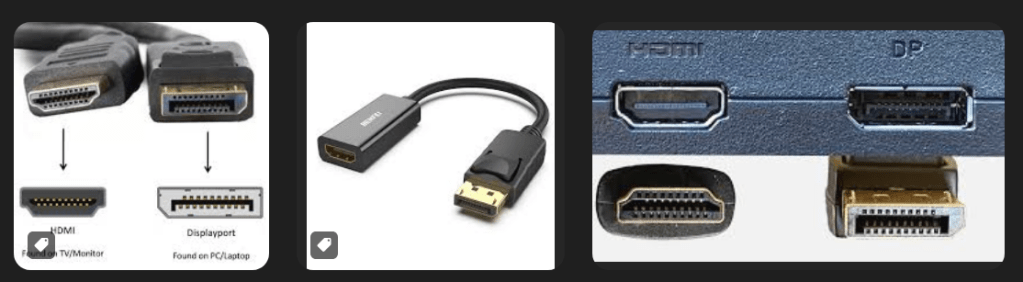
Update: Fixed the problem by replacing the cable to the monitor that kept going black. The cable, which had a latch, to the primary monitor is faulty. If the cable was wiggled at the monitor, the monitor would go black. I was confused earlier when the monitor would go black with nothing being touched on the cable or monitor. Replacing the DP cable fixed the problem. BTW, none of the DP cables I saw on Amazon had latches. The pictures of the ends of those cables were shown in such a way that the latch side of the connector was not shown. Newegg, however, as far as I can tell, only carries DP cables with latches. I’m not clear on the point of a DP cable with no latch. That’s the whole point of DP rather than HDMI which has no latch option. Cable converters between DP and HDMI contain no logic, but just wires. I suggest you always use DP cables with latches and my experience shows that cheaper cables, even with latches, can cause problems.
For over a year, I’ve been using two monitors with my gaming rig. One is a 27″ 2K monitor, and one is a 32″ 2K monitor. I was using a 24″ 2K monitor as the primary, and it seemed to have a problem that caused it to Pop and then go black. The pop is apparently the speakers in the monitor being disconnected. Audio is carried over the monitor connection to speakers in the monitor.
After getting the 27″ monitor, it had the same problem.
I’ve finally tracked the problem down. I think.
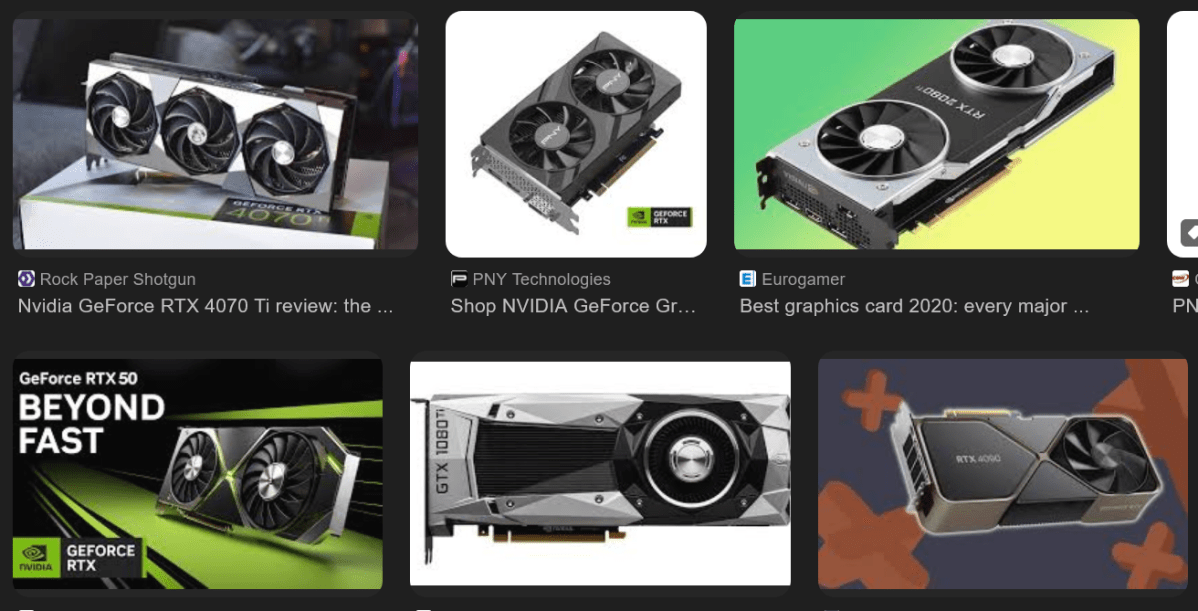
The problem is apparently that Nvidia graphics cards / drivers have an issue if you connect two monitors using different connection types.
My primary monitor [ smaller one, currently 27″] 2K QHD resolution has been connected with Display Port.
The secondary monitor, which is larger since it is actually farther away, is a 32″ monitor and I used HDMI to connect it since I had a long cable to use.
I recently got a nicer 27″ gaming monitor for the primary monitor, again using Display Port. And it has the same problem – Goes black. So the problem is not the monitor. And I’ve changed computers, and graphics cards – RTX 1060, RTX 3060. Same issue. Usually just once shortly after I start a game – any game FFXIV, GW2, ESO, you name it – the monitor on display port goes black, and I usually have to power cycle it with the switch to get it going again. This usually happens just once during a session. If I shut down a game an play another one, it is likely to happen a few minutes after starting the second game.
Well I just changed the connection to the 32″ monitor from HDMI to Display Port – got a long nice Display Port Cable. And it stopped happening.
So, either the driver or at least two generations of Nvidia GPUs have a problem that if you mix Connection Types, the Display port monitor go black and usually require a power cycle to get a display again. As you might imagine this can be annoying if you are the tank and you have just entered a dungeon with a party. Sigh…
Anyway, I’ll continue to test, but it looks like this is a long surviving problem with Nvidia Drivers / GPUs over several generations.
So don’t cross the streams! Er, I mean don’t mix the connections. :ww
Update: This problem is apparently fixed. I recently – a couple of days ago Jan 2, 2025 – updated VirtualBox to the latest, and installed a Linux system and updated the guest additions using the new Virtual Box. And the resolution of the display was fine. So looks like they fixed it. The guest additions I saw were 7.1.x, not 7.0.x. Not sure where the fix came in, but it looks like all is well.
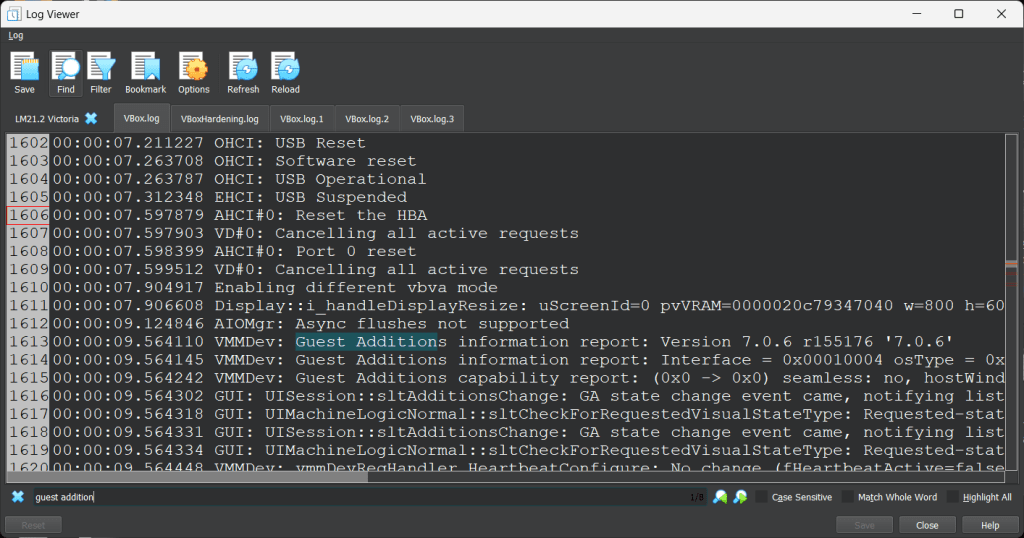
I checked the version of the Guest Additions in the Linux Mint virtual machines and the Blurry Problem is apparently caused by the 7.0.22 Version of the guest additions. See the earlier post to see the blurry text. Have a look at the GA versions in the following logs:
LM21.2 Text is not Blurry – GA 7.0.6
This is the earlier version of Linux Mint with Guest Additions 7.0.6. Text is not blurry because the window can be resized to fit the screen resolution.
I use Linux Mint in Virtual Box virtual machines on Windows Hosts. I’ve been using Linux Mint 21.2 on a Windows 10 machine for some months now and it’s all fine.
Notice the following examples of text in the windows:
Notice how sharp this text is. My monitor size is QHD [2560×1440]. I use Nvidia GPUs. This first example is on Windows 11 host with a Linux Mint 21.2 client on VirtualBox 7.1, no guest extensions [or not recently anyway]. GPU is a Nvidia RTX 3060. This text looks the same sharpness on Windows 10 host with earlier VirtualBox releases. It looks great.


 Windy Weather