A few days ago, I posted about a Sony Bravia TV occasionally hanging up and requiring a power cycle to cause a reboot. At this point the TV has died permanently. Power cycling no longer boots the system. It remains black.
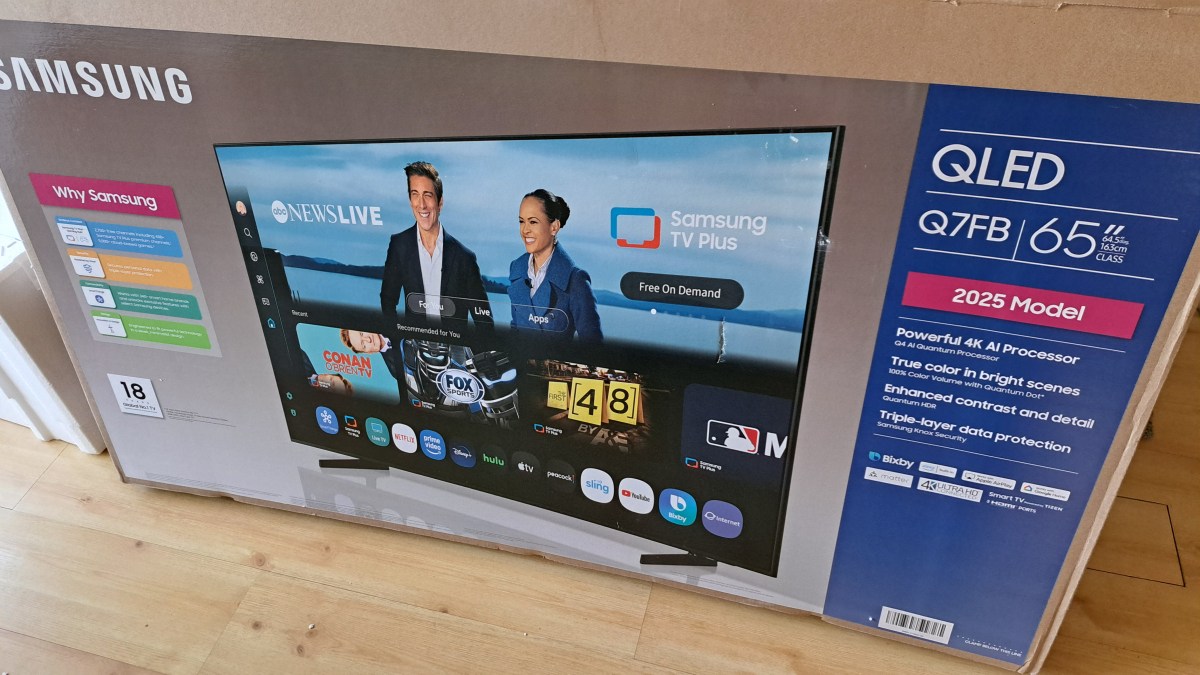
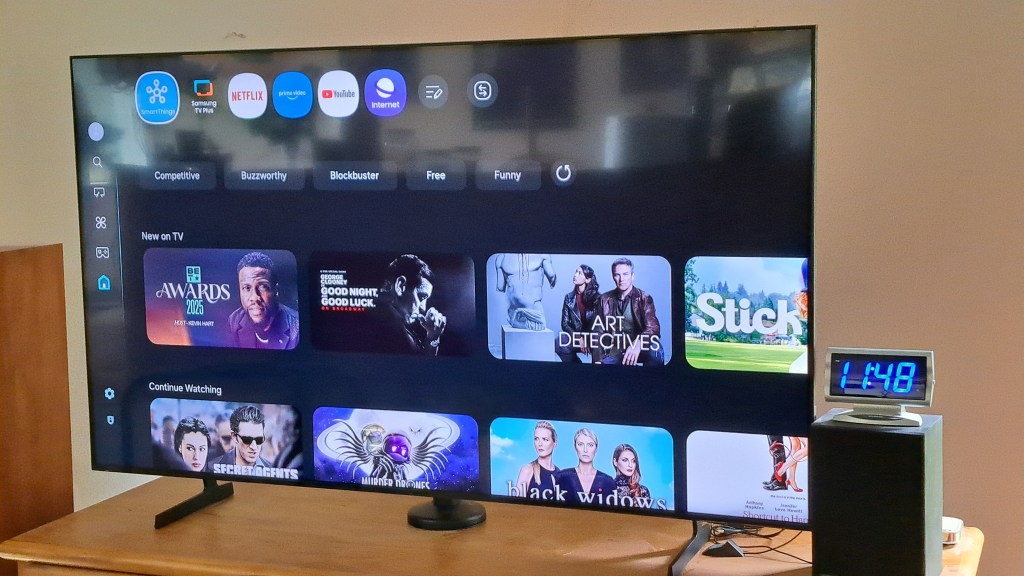
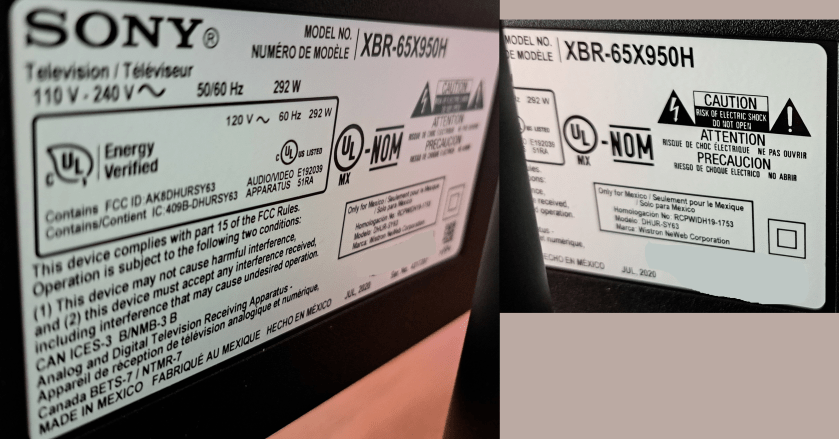
I’ve purchased a new Samsung TV for about 1/3 the cost of the Sony TV from five years ago. The label indicates the Sony TV was manufactured July 2020, and it was purchased in October 2020. For the new TV I spent an extra $100 for the QLED model. I hear that QLED is a more modern screen technology, and it seemed reasonable to stay up to date for that small amount of money. The screen looks very nice.
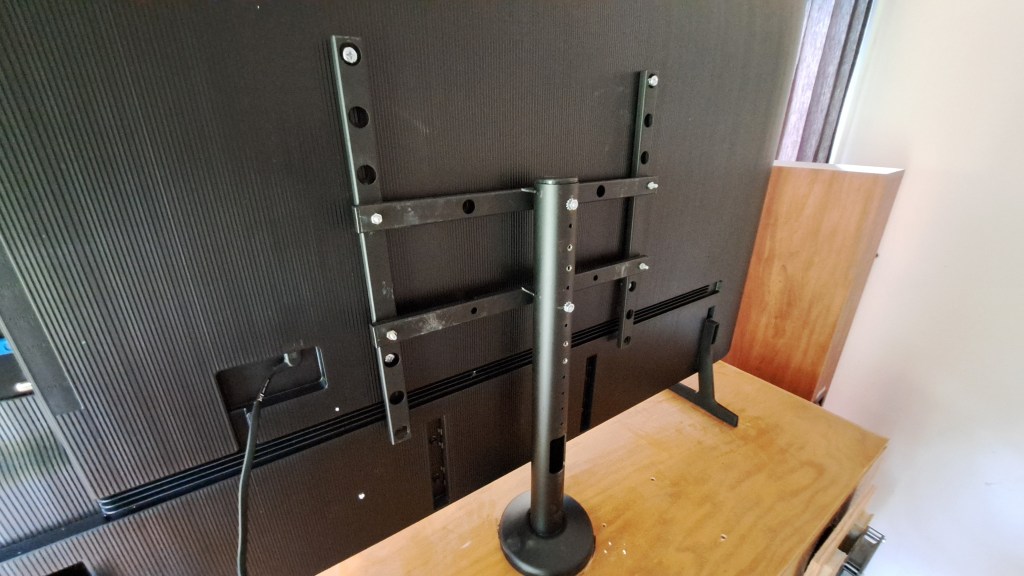
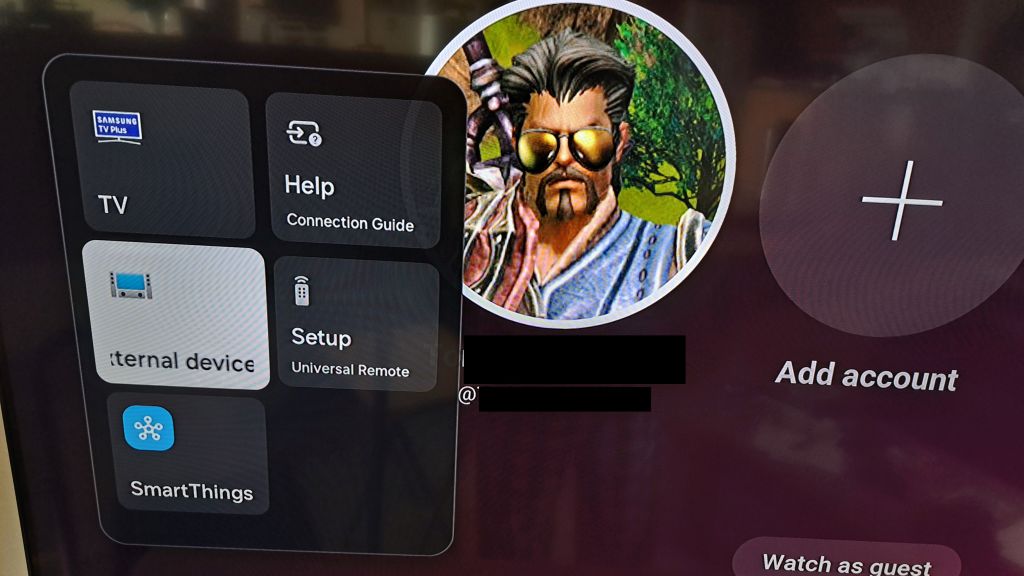
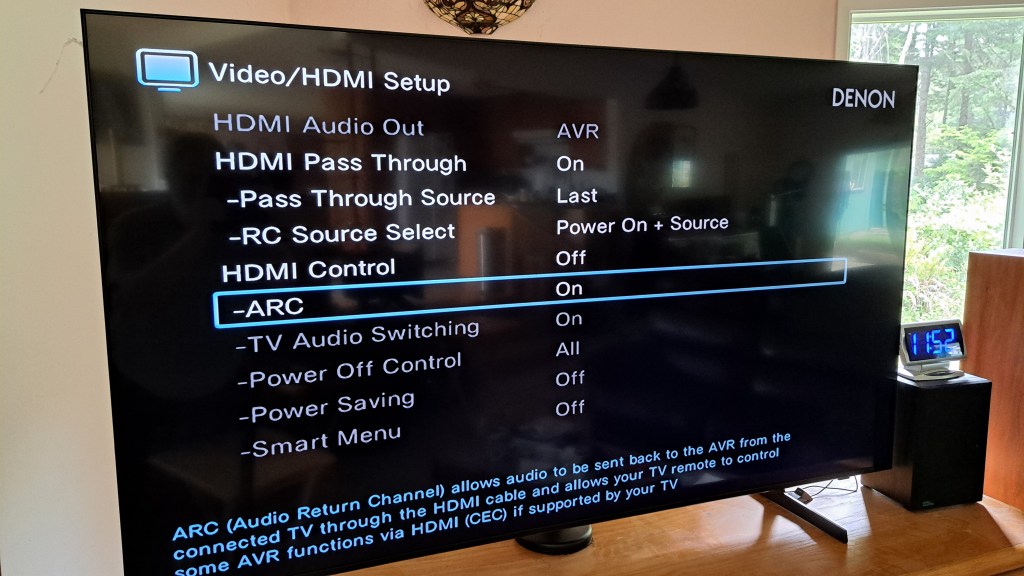
Several things required changing to accommodate the new TV.
My five year old Sony Bravia TV works perfectly well, until it doesn’t. I think the TV, and Android operating system of the TV are fine, but the three apps I use are getting more and more complex and memory hungry as time goes by.
July 2020 – Manufacturing date of this very nice TV. And like I said it works perfectly well most of the time. But after a few trips through Youtube, and sleeping the TV now and then through the day or over several days, eventually the TV just hangs up. I click on a Youtube video and the screen goes black. I hit HOME and it eventually – a few too many seconds – goes home. There are 2-3 second delays as I move between selections on the home screen.
Time for a reboot. I have a remote switch – one of these from Amazon. So I can just power off the TV, count to 10, and turn it back on. All is better, for a few days until it happens again.
Five years ago the memory capacity and processor speed were just fine for this TV. And streams play just fine watching movies on Netflix and Prime, or YouTube videos. But all three of these Apps have gotten increasingly complex in the way they deal with thumbnails and a dozen other things that keep using more memory and processor time.
Someday soon this TV is going to be replaced, not because it doesn’t work, but because it has not kept up with the apps. Oh wait. Is there a Generic App runner that I can use? I used to run a Linux Box as my streaming system. I’m not sure I want to buy into the Roku thing. But maybe some generic box? Google stopped making Chrome Cast. Hummm… Well someday I’ll check into that. For now, rebooting works. :ww
Update: 16 April 2025 – Work around – Use HDMI cable instead. There are dozens of threads on Reddit and elsewhere over several years complaining the Display Port does not work. Many mention “Solved” for things already tried and don’t work in this case. So one place mentioned that HDMI cable works, and yes – The ASRock Monitor always wakes when using HDMI cable. And it looks fine. The ASUS 32 ” monitor always wakes from Sleep with Display Port. Anyway, so the ASRock Monitor will be on an HDMI connection. This is the solution that works here.
Since sometime in 2024, I’ve been struggling with a monitor problem. At first I thought it was due to mixed connection types [HD and Display Port] but alas, I think I have tracked it down to failures in the monitors themselves. Multiple types, and multiple manufacturers [Maybe. Can’t be sure]. Here’s the latest test and what happened.
When using IntelliJ to build a JavaFx project, eventually you man want to build a JAR to deploy the program to another system. The following plugin is required in the Plugin section of the POM.xml file to build a JAR file. There may be other ways than manually adding this plug-in. This method was shown on a Discord channel.
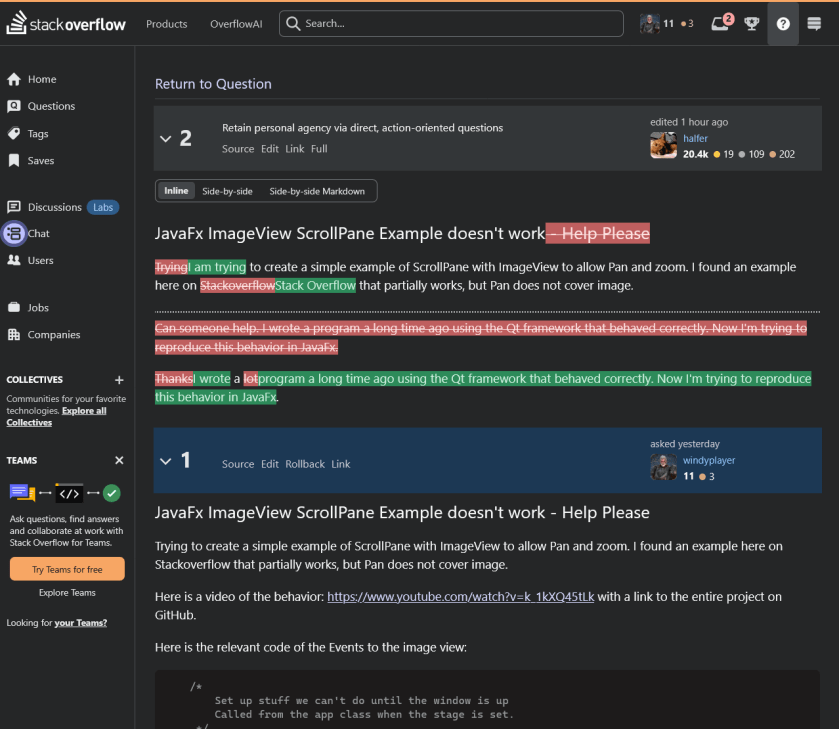
So, I’m having trouble with a JavaFx program and decided to ask a question on StackOverflow. And it looks like a moderator, or other user, edited my question to change the wording. I have no problem with the edits, except that they seem awfully picky. What do you think?
So I am attempting to “Retain Agency” by posting this here for us to have a look.
In the future, I will always attempt to retain my agency.
I had assumed that StackOverflow was a forum, but it seems it is subtly different from a forum. Here are a couple of examples of the etiquette of StackOverflow showing through:
The last time I wrote Java code was about five years ago in 2000. At that time I needed a program to display a series of LibreOffice Impress slide shows to build an artwork display using a Linux System with a large monitor.
Recently I’ve gotten bored with Gaming and have decided to go back to programming and have decided to rewrite QtScreenShotArchive in Java. QtSSA is a program that I wrote back in 2013 to back up and organize screen shots for games I play. The program works great, but it is complex enough to provide a challenge for some Java coding. If you are interested in the current C++ QtFramework based, QtSSArchive program, it’s available from the page above.
Things have changed quite a bit since I last programmed Java. As I recall I was using the Eclipse IDE. Eclipse is still around, but the flashiest guy on the block is now Itellij. If you go there to download, be sure you scroll down to the bottom of the page to get the free community version rather than the free trial of the paid version. Unless you wanna pay. LOL
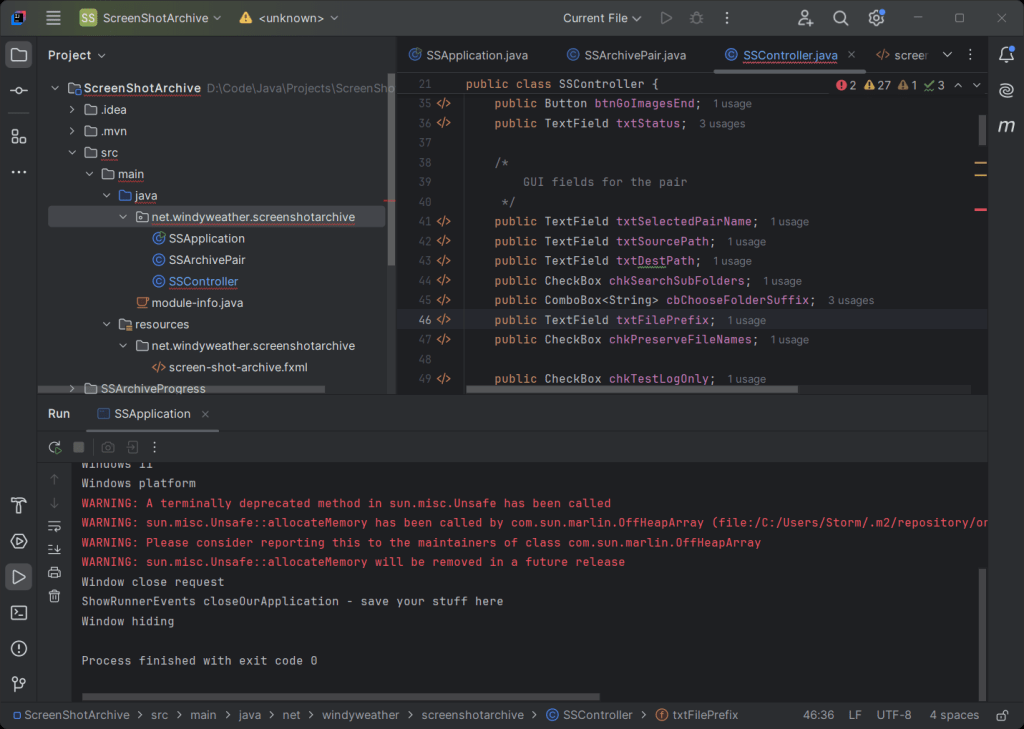
Here’s what IntelliJ looks like:
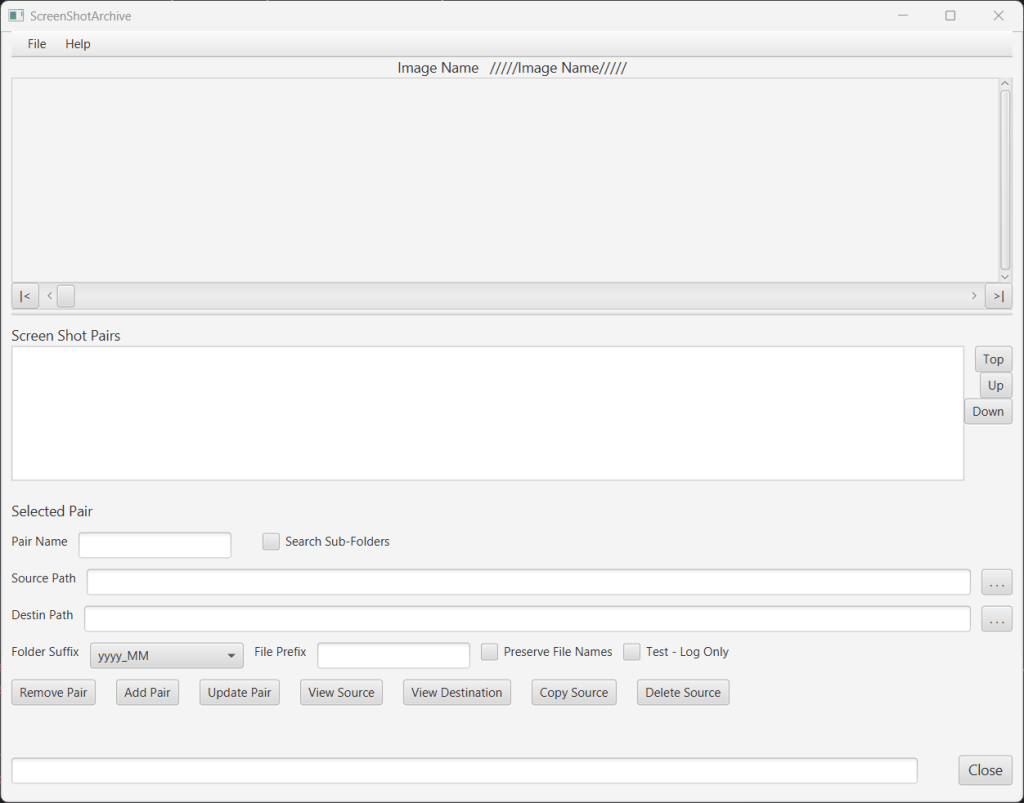
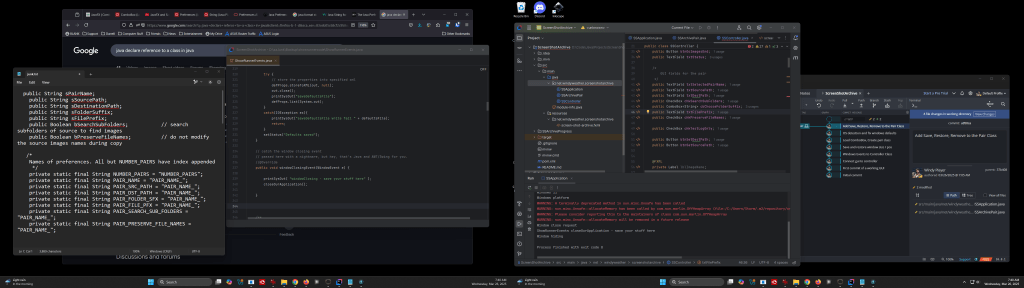
I suggest you use two monitors for development. I use IntelliJ on one and web pages for research and sample code on the other. And GitKraken is waiting in the background to check stuff in. There is an example of the GUI for the SSArchive program as well.
I am looking forward to the demise of Windows 10. Just kidding. I am doing the last conversion of my systems to prepare for the demise of Windows 10 in October 2025 – No more updates to Windows 10, esp security updates, after that time. And while Microsoft says stuff about being able to install Windows 11 on “any system” recently, they are not walking back this end date for security updates on Windows 10. Yep there are other ways. But they have an end date too, and cost a few bucks a year. Not sure I want to pay for home-grown security updates. So I’m going to move all my systems to Windows 11, or Linux Mint. Linux never said anything about not supporting older processors.
To review:
The new machine upgrade I did a while ago, when a power supply died, went straight to Windows 11.
Two more recent systems, upgraded in-place, which no glitches, from Windows 10 to Windows 11. No problems.
One machine – my “mail machine” – runs Thunderbird to support about a dozen email addresses. I moved that machine to Linux Mint.
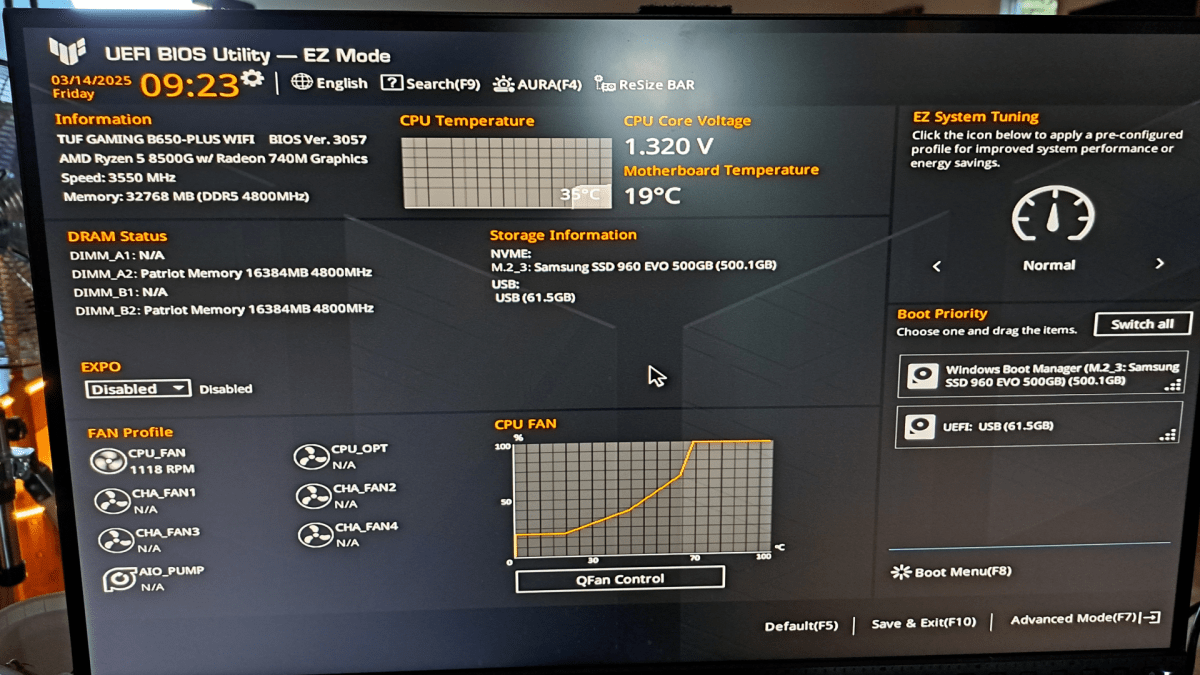
This last machine is my Network Backup machine which runs Carbonite. Linux is notoriously finicky about file sharing with Windows. This machine serves as a dumping ground for important things from all the other Windows systems and then backs them up to Carbonite. I decided that I needed to buy a less than bleeding edge system that would run Windows 11.
Note: While the Banner for this post, and the images were created by AI, the text was created, for better or worse solely by me.
As you may have, I’ve been watching the progress of AI to generate images and even videos for a couple of years now. I’ve not been interested in “signing up” for one of the services since it is pretty clear that it will run into a lot of money to do anything serious. However, I have a couple of extra computers with GPUs so I thought it would be time to try to run AI image generation locally.
ComfyUI Seems Too Complex
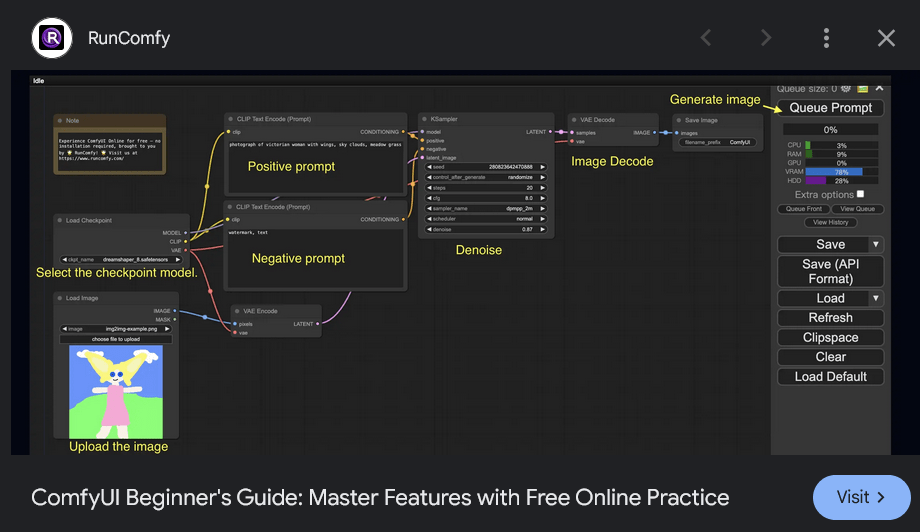
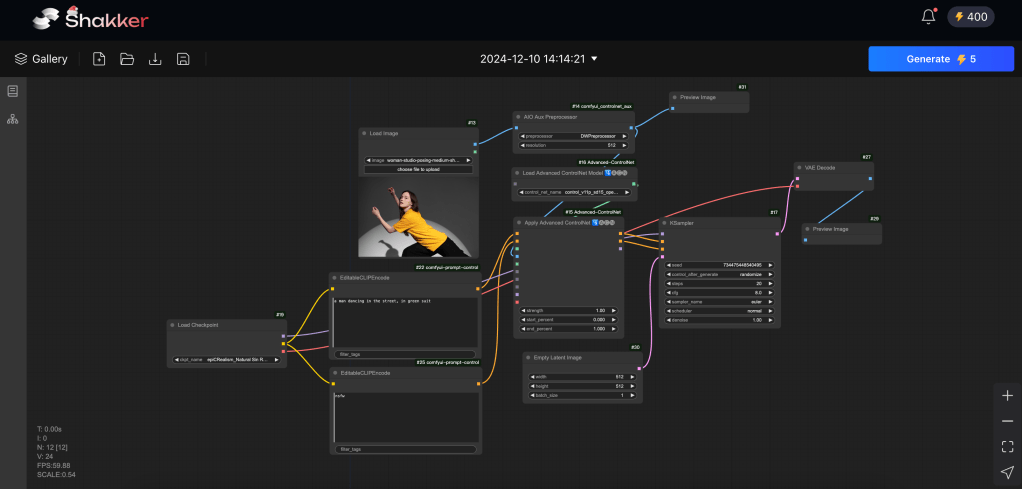
I took a look at ComfyUI. It looks way too complex. While I’m familiar with the concept of connecting the boxes – from texture creation in Blender among other places – I’d rather just check some boxes and paste in a prompt.
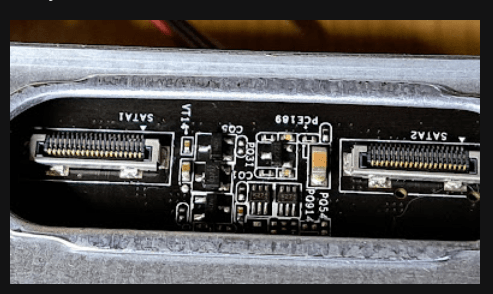
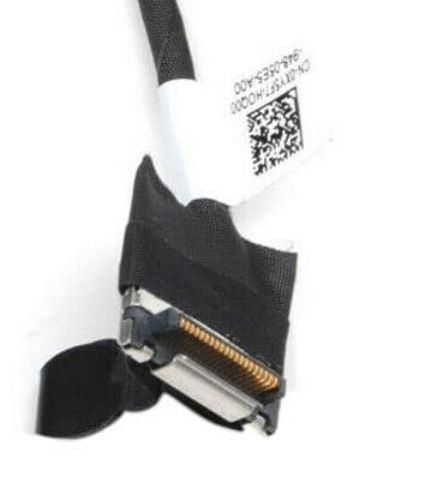
I need to find cables to attach these connectors to a sata hard drive. I’m assuming that this carries both power and signal. Looks like Gigibyte used a laptop connector – as you would expect – to attach up to two additional hard drives.
[SOLVED] maybe. I think I found the cable on Amazon.
I ordered a couple of these. We’ll see if they work.
To Summarize: I’m using two monitors and one of the monitors does not wake from sleep without a power cycle. Most recent update is at top, in blue. The initial post is below in White Text.
Update: 17 Mar 2025 Problem seems to be with the Asrock Phantom Gaming Monitor not waking up from sleep. Setting the computer to never sleep has fixed the problem while I’m using the computer. Of course, when the computer is put into sleep mode over night, then the monitor does not wake up in the morning and needs to be power cycled to wake up. I have not done this testing with the previous monitor or graphics card. Maybe it is an interaction with the other ASUS monitor in some way. I have other systems that have two DP attached monitors – both 27″ ASUS monitors – and they never have this problem. Hum…. Maybe I’ll do a test: Replace the 32″ monitor with the 24″ monitor and see if that fixed the issue. Hummm. Eh Nope. That does not change the problem. 24″ monitor replaces the 32″ monitor and the 27″ monitor still fails to wake from sleep..
Update: Nope. Sorry. Replacing the cables did not fix the problem. This is not the whole answer. The main monitor clicked off again after I replaced both connections with Display Port. I’ll continue to try to find a solution.
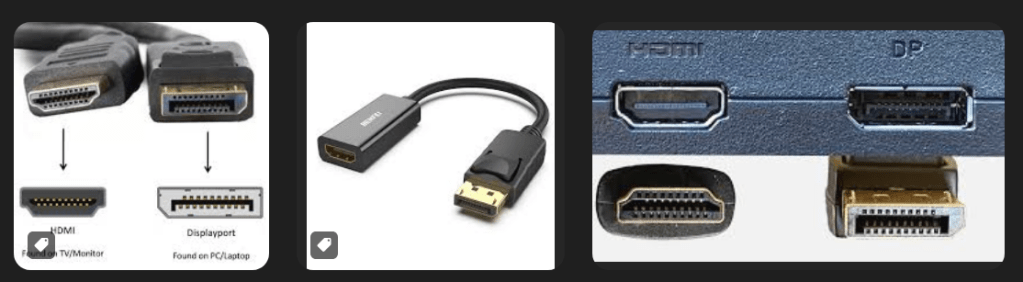
Update: Fixed the problem by replacing the cable to the monitor that kept going black. The cable, which had a latch, to the primary monitor is faulty. If the cable was wiggled at the monitor, the monitor would go black. I was confused earlier when the monitor would go black with nothing being touched on the cable or monitor. Replacing the DP cable fixed the problem. BTW, none of the DP cables I saw on Amazon had latches. The pictures of the ends of those cables were shown in such a way that the latch side of the connector was not shown. Newegg, however, as far as I can tell, only carries DP cables with latches. I’m not clear on the point of a DP cable with no latch. That’s the whole point of DP rather than HDMI which has no latch option. Cable converters between DP and HDMI contain no logic, but just wires. I suggest you always use DP cables with latches and my experience shows that cheaper cables, even with latches, can cause problems.
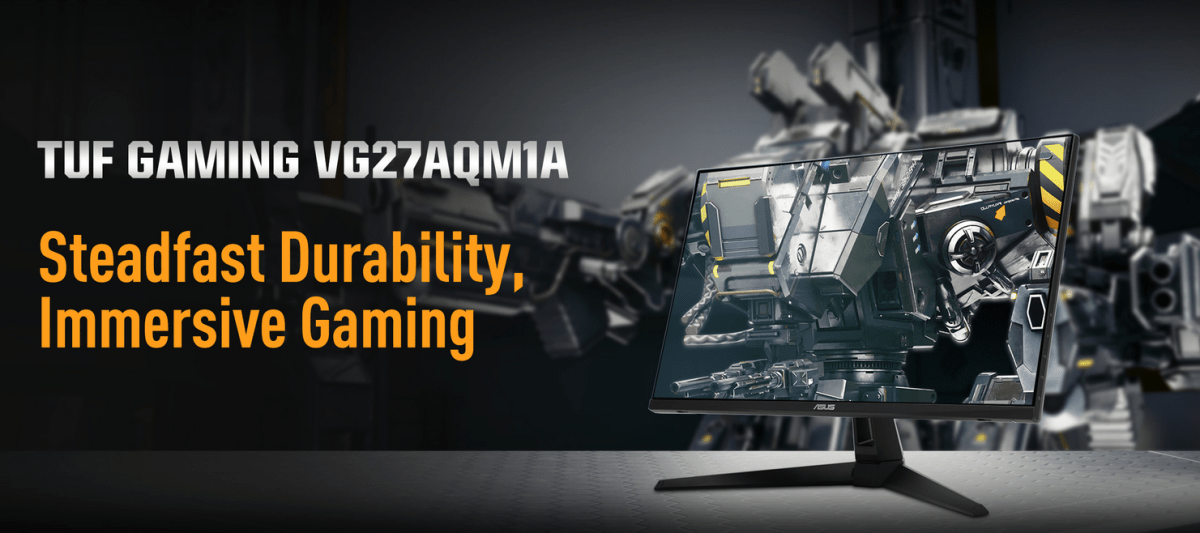
For over a year, I’ve been using two monitors with my gaming rig. One is a 27″ 2K monitor, and one is a 32″ 2K monitor. I was using a 24″ 2K monitor as the primary, and it seemed to have a problem that caused it to Pop and then go black. The pop is apparently the speakers in the monitor being disconnected. Audio is carried over the monitor connection to speakers in the monitor.
After getting the 27″ monitor, it had the same problem.
I’ve finally tracked the problem down. I think.
The problem is apparently that Nvidia graphics cards / drivers have an issue if you connect two monitors using different connection types.
My primary monitor [ smaller one, currently 27″] 2K QHD resolution has been connected with Display Port.
The secondary monitor, which is larger since it is actually farther away, is a 32″ monitor and I used HDMI to connect it since I had a long cable to use.
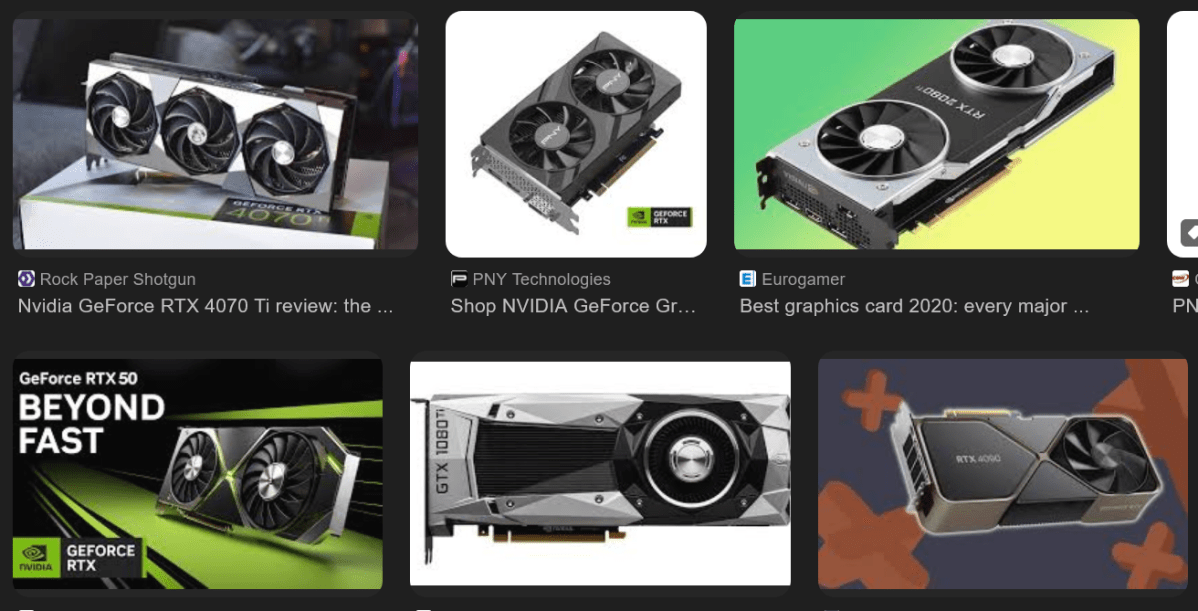
I recently got a nicer 27″ gaming monitor for the primary monitor, again using Display Port. And it has the same problem – Goes black. So the problem is not the monitor. And I’ve changed computers, and graphics cards – RTX 1060, RTX 3060. Same issue. Usually just once shortly after I start a game – any game FFXIV, GW2, ESO, you name it – the monitor on display port goes black, and I usually have to power cycle it with the switch to get it going again. This usually happens just once during a session. If I shut down a game an play another one, it is likely to happen a few minutes after starting the second game.
Well I just changed the connection to the 32″ monitor from HDMI to Display Port – got a long nice Display Port Cable. And it stopped happening.
So, either the driver or at least two generations of Nvidia GPUs have a problem that if you mix Connection Types, the Display port monitor go black and usually require a power cycle to get a display again. As you might imagine this can be annoying if you are the tank and you have just entered a dungeon with a party. Sigh…
Anyway, I’ll continue to test, but it looks like this is a long surviving problem with Nvidia Drivers / GPUs over several generations.
So don’t cross the streams! Er, I mean don’t mix the connections. :ww






 Windy Weather