
I am looking forward to the demise of Windows 10. Just kidding. I am doing the last conversion of my systems to prepare for the demise of Windows 10 in October 2025 – No more updates to Windows 10, esp security updates, after that time. And while Microsoft says stuff about being able to install Windows 11 on “any system” recently, they are not walking back this end date for security updates on Windows 10. Yep there are other ways. But they have an end date too, and cost a few bucks a year. Not sure I want to pay for home-grown security updates. So I’m going to move all my systems to Windows 11, or Linux Mint. Linux never said anything about not supporting older processors.
To review:
- The new machine upgrade I did a while ago, when a power supply died, went straight to Windows 11.
- Two more recent systems, upgraded in-place, which no glitches, from Windows 10 to Windows 11. No problems.
- One machine – my “mail machine” – runs Thunderbird to support about a dozen email addresses. I moved that machine to Linux Mint.
- This last machine is my Network Backup machine which runs Carbonite. Linux is notoriously finicky about file sharing with Windows. This machine serves as a dumping ground for important things from all the other Windows systems and then backs them up to Carbonite. I decided that I needed to buy a less than bleeding edge system that would run Windows 11.
The List of Parts
NewEgg.com is my Go-To place for computer parts. Maybe Amazon could shave a few bucks off the price and save a little shipping, but NewEgg has better search for parts, and overall a better selection. I don’t want to wade through housewares and books on my way to an SSD.
Here is the order I put together for this upgrade:
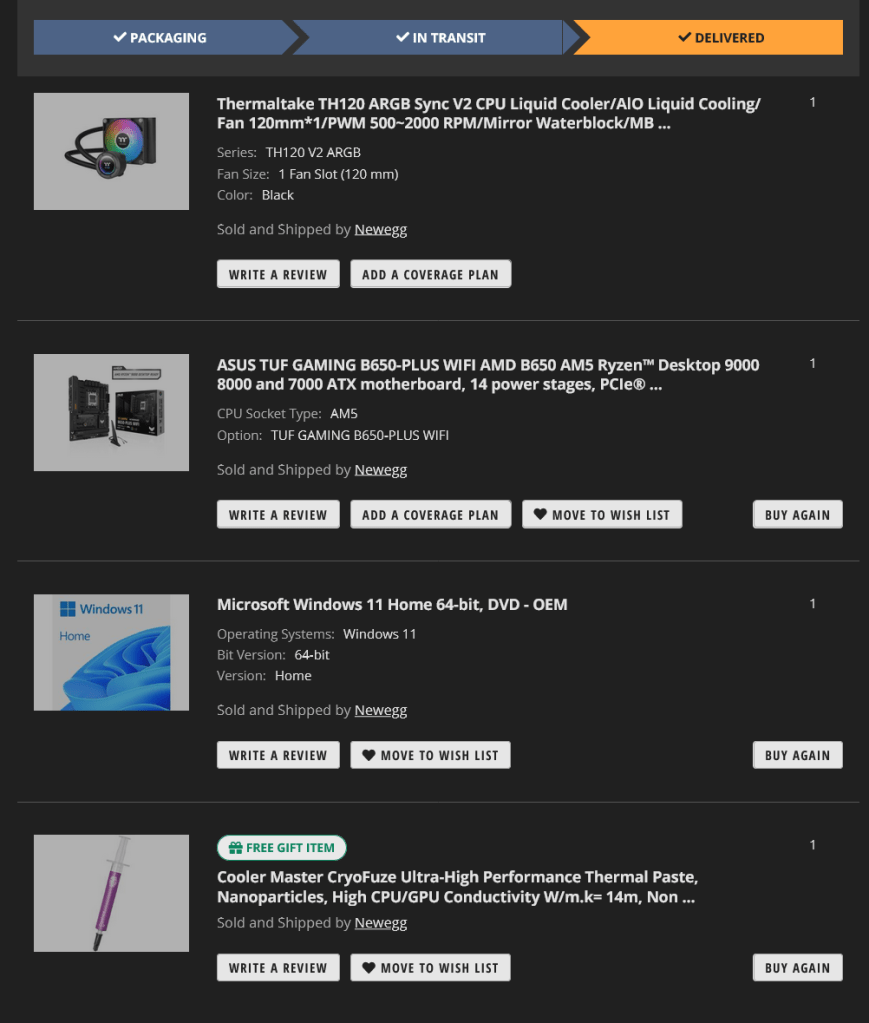
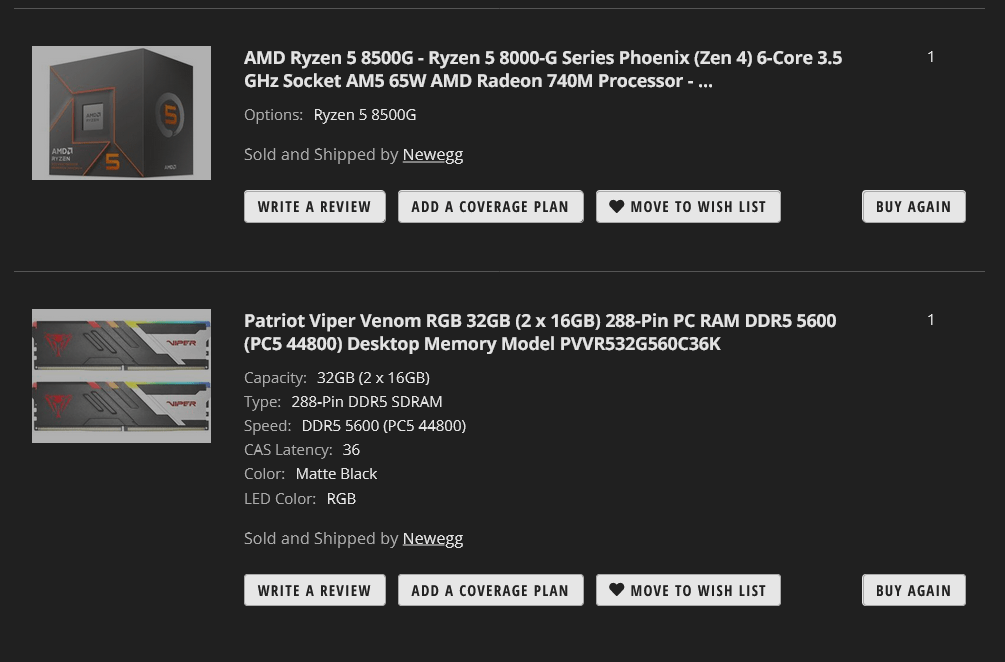
The total came to about $580. Note I saved about $10 on Windows 11 by purchasing it on DVD. Odd that. But that’s ok by me. I installed Windows 11 from a Thumb drive anyway. The Microsoft website will make you a thumb drive for a Windows 11 installer.
I started with the Motherboard. It’s an inexpensive AM5, DDR5 MB that supports a wide range of AMD CPUs. This case would accommodate a full size ATX MB, so I went with that size. Most of my other cases are restricted to Micro-ATX.
As you may know from previous posts here, I have a lot of older Alienware cases that I have upgraded the lighting and systems to be more modern. The latest one was a 2012 Alienware R2 case where the Power Supply died so I replaced it with a Ryzen 9 7900X, 64GB ram, RTX 3060 system running Win 11. That is my “main Gaming System”. It is great.
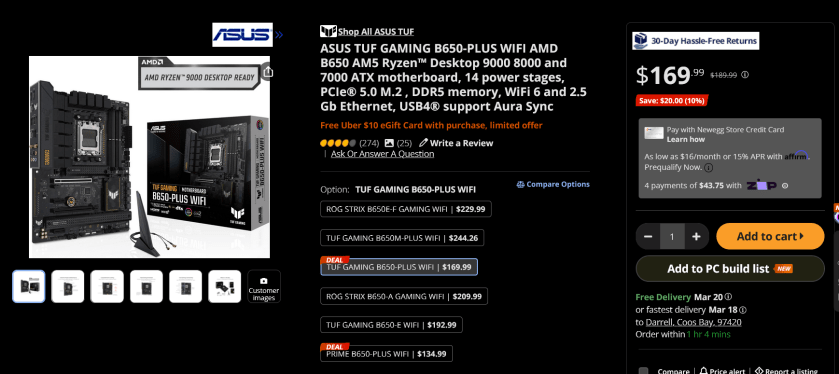
So back to this system. The box for the motherboard said it supports Ryzen 9000 systems. So after some trepidation, I checked newegg’s website again and found that the description clearly shows Ryzen 8000 as well.
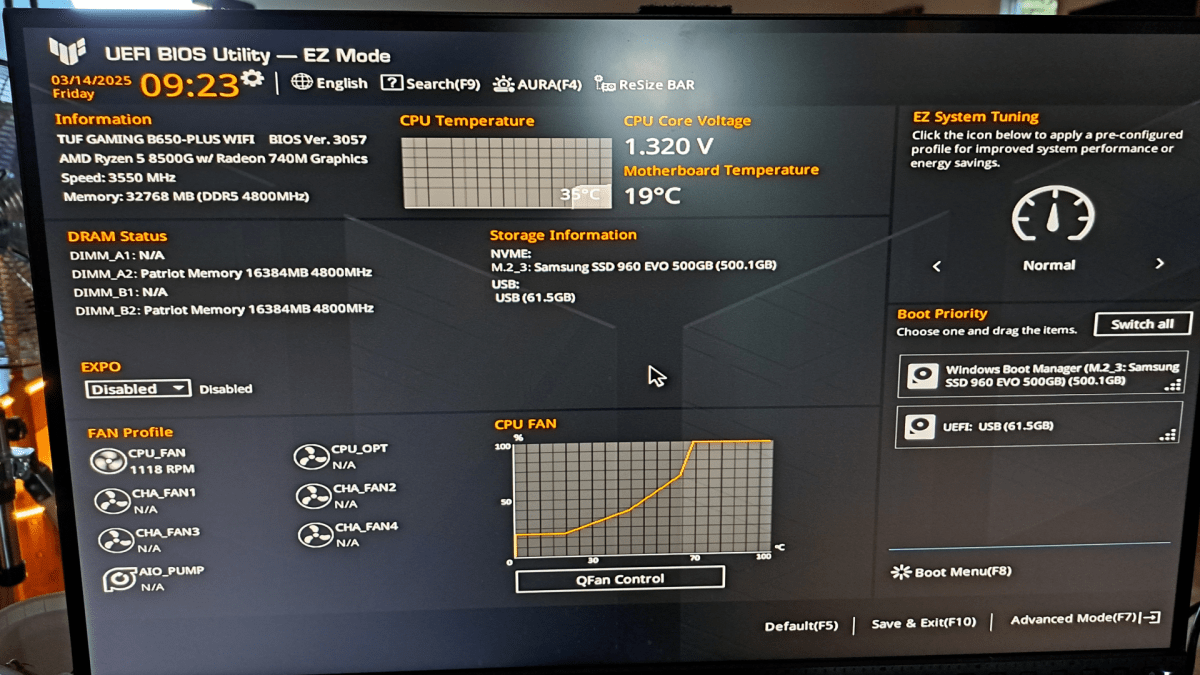
Whew. Since an air cooler was supplied with the CPU, I decided to build the system in stages. Oh. BTW. I’m going to use the 500GB NVME SSD from the previous system. So I started with the CPU, RAM, SSD and put the Motherboard in the case. I put the air cooler on the CPU and started it up. Even this cheap motherboard had three M.2 NVME slots, all with heat sinks.
The bad news was that the Window 11 didn’t see the WiFi. More on that bad news later. The first problem was that nothing happened when I started it. The monitor was dark. After some checking around, I found that the motherboard lights were saying that there was a problem with the VGA – In other words, it didn’t like the monitor connection. What? I was using a QHD monitor with a Display Port cable. I tried an HDMI cable instead, and it worked?
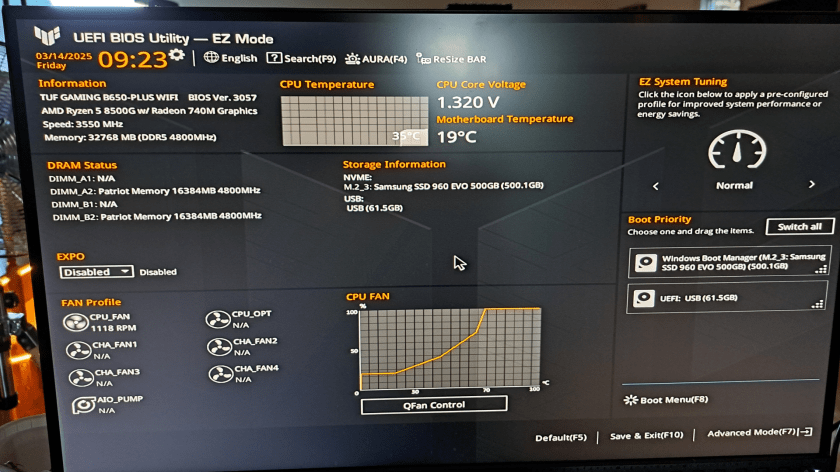
I double checked – clearly the Motherboard supported Display Port – there is a connector on the back. I checked the documentation of the Ryzen 8500G with it’s onboard 740M graphics. Yep Display Port is supported – Of Course!.
But the HDMI cable worked fine. I’m going to require a GPU in this system anyway since my “computer farm” uses a KVM switch with Dual Display Port cables from each computer. Anyway, more on that later. The “build area” only uses a single monitor.
Here’s the system at this stage:
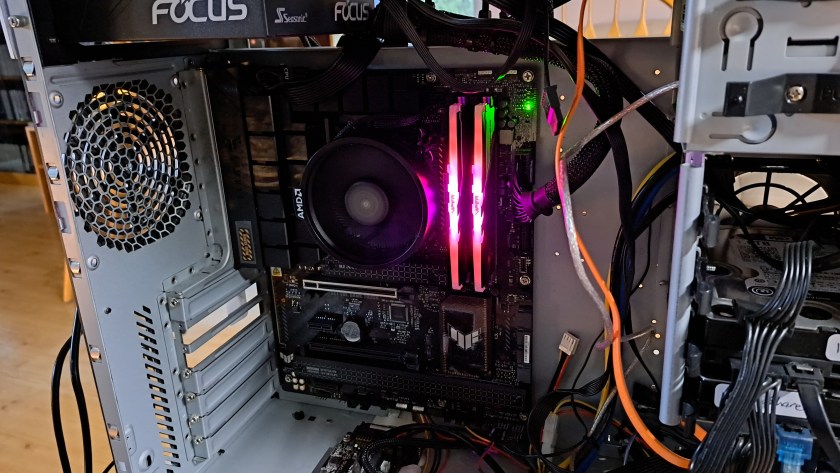
Do we call this “First Light”? Anyway.
Time for Windows 11.
I had a Windows 11 thumb drive. Not the latest one, but I’m sure it will upgrade later. The build area is a few feet from the nearest Ethernet Switch, but never mind, the motherboard has built in WiFi, right?
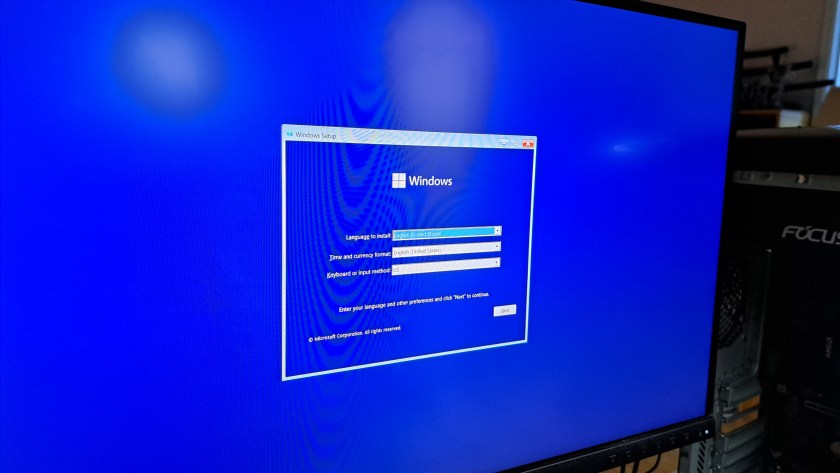
Time to scratch off the code from the DVD envelope and put that sucker in. Sigh.
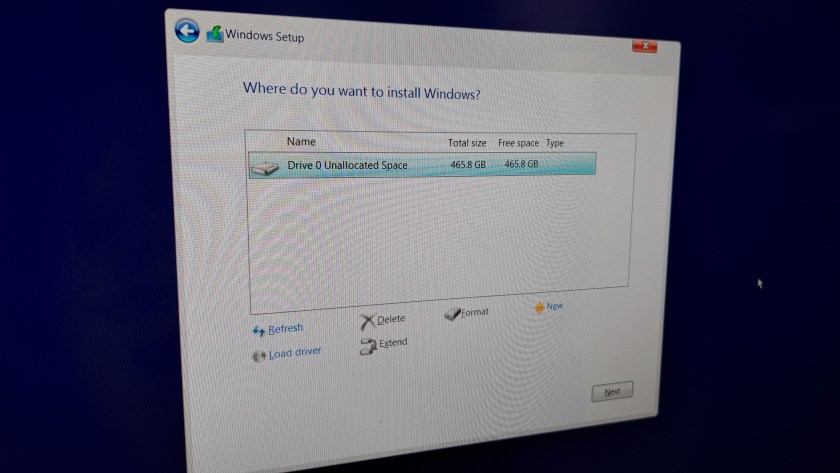
I deleted all the previous partitions from the SSD and started clean.
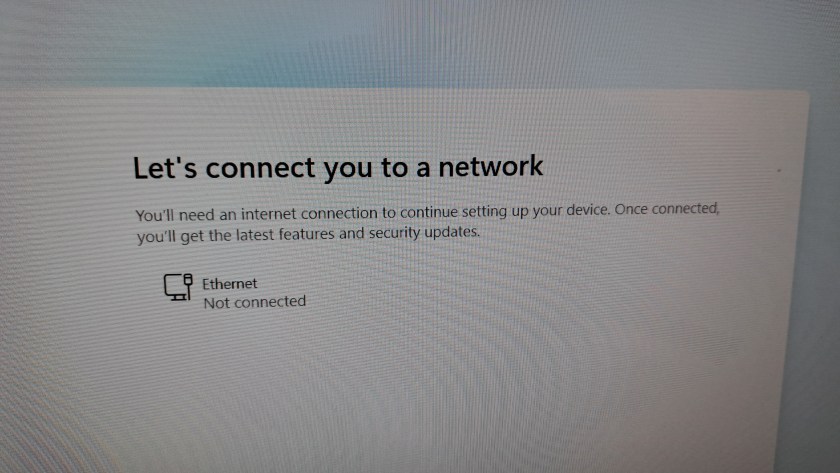
What no wifi choice? Sigh… Get out the long blue cable to reach about 15 ft across the room to the ethernet switch behind the TV. No problem. Tie the cable to the table leg to avoid tripping over the cable and pulling the computer down.
All Right. Connected. Gotta be connected. Don’t try this at the bottom of the ocean on a submarine.
Now for the hand holding. First it required a “Microsoft Account” and no no no. it can’t be the one you made on Social.Microsoft.Com to use the forums.. Nope. Gotta be the one you made on Live.Microsoft.com. And they do not make this clear. Finally… That long automatically created password is typed in, and then back to another computer to answer their email to prove.. .Wait a second. I need to verify an email to install an OS? Well I made a bogus email for Microsoft to install Windows. I suggest you do to.
Now they start with the nonsense while they update the system.
Way too much hand holding and nonsense while they get going. So before you upgrade a Windows 10 to Windows 11, or install a new Windows 11 system, go make yourself a throw-away email account to point Microsoft to so that you can at last confuse their tracking a little bit. I’m sure they are going to track you on the web if you use an email that is used for other things.
Just Use The Air Cooler
I purchased a liquid cooler. But this is a very low power CPU – 65W, so I’m sure it will be fine with the “Stock Cooler” that comes in the package with the CPU. I’ll save the cooler for another build.
GTX 1060 GPU
Yep. I had an older GTX 1060 left over. I have a couple of them that I still use. Yep FOUR generations old and still working fine. It has a pair of Display Ports so it works fine in my Computer Farm.
It all works, except WiFi.
And once the system is up and going, we are back to that WiFi Problem. The ASUS website provides Zip files, not installers. But unpacking them and installing them didn’t really take care of finding all the drivers. And then no joy for the WiFi.
After some searching in Google, I found that there is lots of discussion of WiFi driver problems in Asus MBs. But many were from a year ago and so I started another one. After some discussion, Puzzled-Hedgehog346 provided a link to a nice installer that fixed almost all the problems. All but one of the items in the Device Manager now have drivers. Still no joy with WiFi tho. There is a “Network Controller” that has a yellow mark on its icon that means it has no driver. I’m guessing that’s the WiFi controller. Looking at the details in the Device Manager says it has a Vendor / Device number and if you look those up with Google you get a RealTek WiFi controller. But I can’t find a driver for it.
I just spent about two hours on a support chat with ASUS support. The very nice fellow tried to help, but the first installer he suggested using just hung. Looked like he was trying to back up a version of the “Chipset Support” driver and it just hung while checking for compatible hardware. Maybe because a later driver was installed. No clue. Anyway, he escalated the call. So we’ll see what happens.
Recommendations
I have had great luck over the years with ASUS motherboards. And this one works very well, except for lacking a WiFi driver.
If you are going to use ASUS for a new motherboard, I suggest you avoid this one. Looks like they are using a newer RealTek chip and have not been careful to have the driver available. We’ll see how my support call does.
I don’t really need WiFi for this system. It’s got a hard-line Ethernet. It just sort of the principle of the thing to get it going.
Hand Me Down Systems
A couple of weeks ago I moved the mail system from Windows 10 to Linux Mint 22.1. And after some hiccups with the email passwords, Thunderbird email is working fine. That system was a Core I7-4770. But the system I just removed from the Carbonite machine is a Core i7-6700. So using the CPU/MB/Cooler from the Carbonite system, I rebuilt the mail machine. Funny thing about Linux, if you change the processor/ motherboard, and then reboot the system, it still works. Don’t try that with windows. Windows will not boot if you change the CPU / motherboard. You have to re-install the OS.
:ww
 Windy Weather